
Screen recording is now an indispensable part of how we teach, work, and share ideas online. From online teaching and remote work to product demos, tutorials, and social media content creation, users increasingly rely on screen recorders to communicate ideas clearly and visually. Among browser-based tools, Screenity Chrome Extension stands out as a popular free option that promises powerful screen recording features directly inside Google Chrome.
But how good is Screenity in real-world use? What are its strengths and limitations? And when should users consider switching to a more advanced screen recorder? In this article, we’ll provide a complete overview of Screenity, explain how to use it, as well as analyze its pros and cons.
1. What Is Screenity?
Screenity is a free and open-source screen recording Chrome extension designed to help users record their browser tabs, entire desktop, or specific application windows. It is especially popular among educators, students, developers, and content creators who want a lightweight recording solution without installing heavy desktop software.
Unlike many free screen recorders, Screenity does not add watermarks, does not impose strict recording limits, and offers a surprising number of built-in tools. Users can record their screen along with microphone audio, system sound, and webcam footage, making it suitable for tutorials, presentations, and walkthroughs.
Key features of Screenity:
- 100% free and open-source
- 워터마크나 시간 제한 없음
- Works directly inside Chrome
- Supports screen, tab, and webcam recording
- Includes basic annotation and editing tools
2. How to Use Screenity to Record Content?
Using Screenity is straightforward, even for beginners. Below is a simple step-by-step guide to getting started:
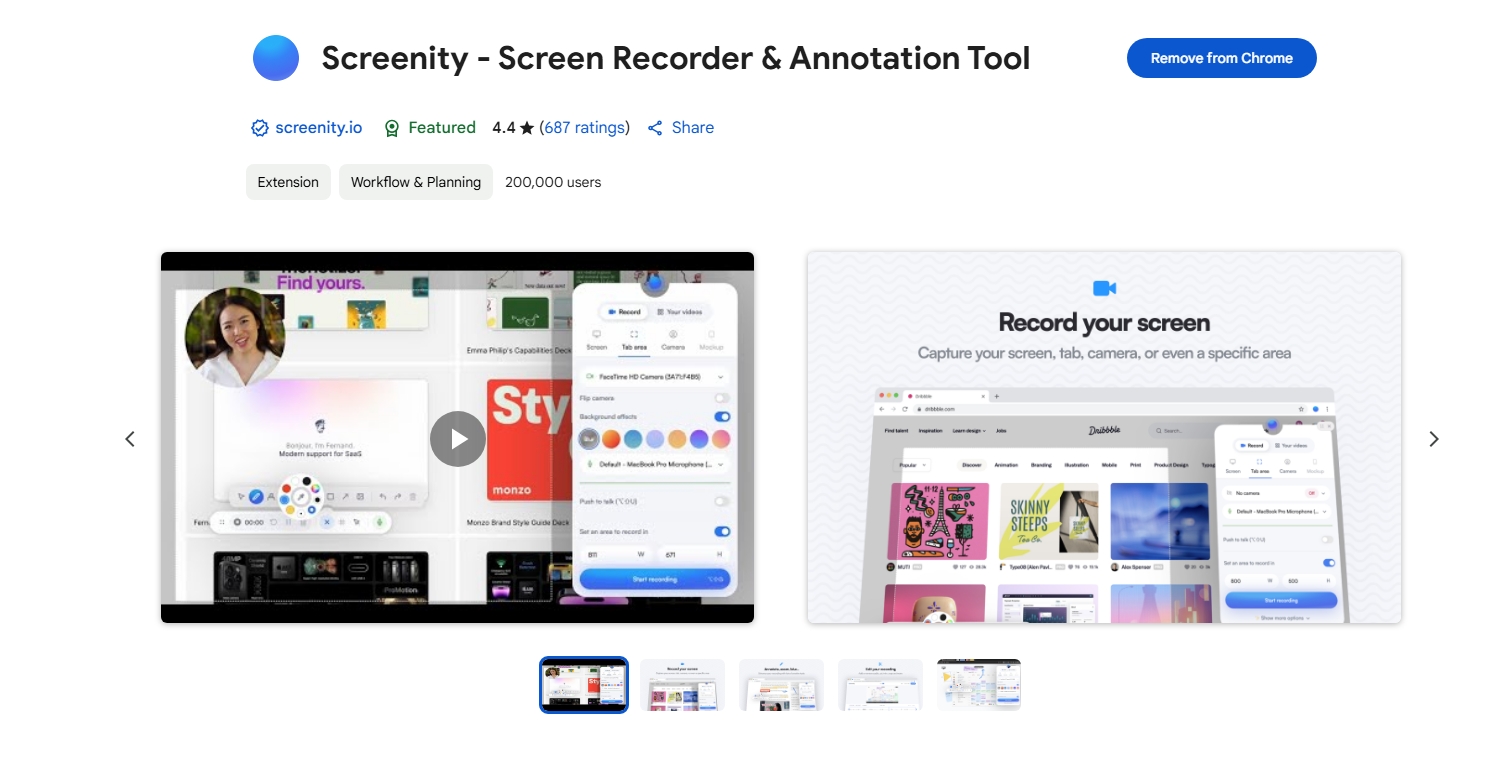
Step 1: Install Screenity
Go to the Chrome Web Store, search for “Screenity,” and click Add to Chrome. Once installed, you’ll see the Screenity icon in your browser toolbar.
Step 2: Configure Recording Settings
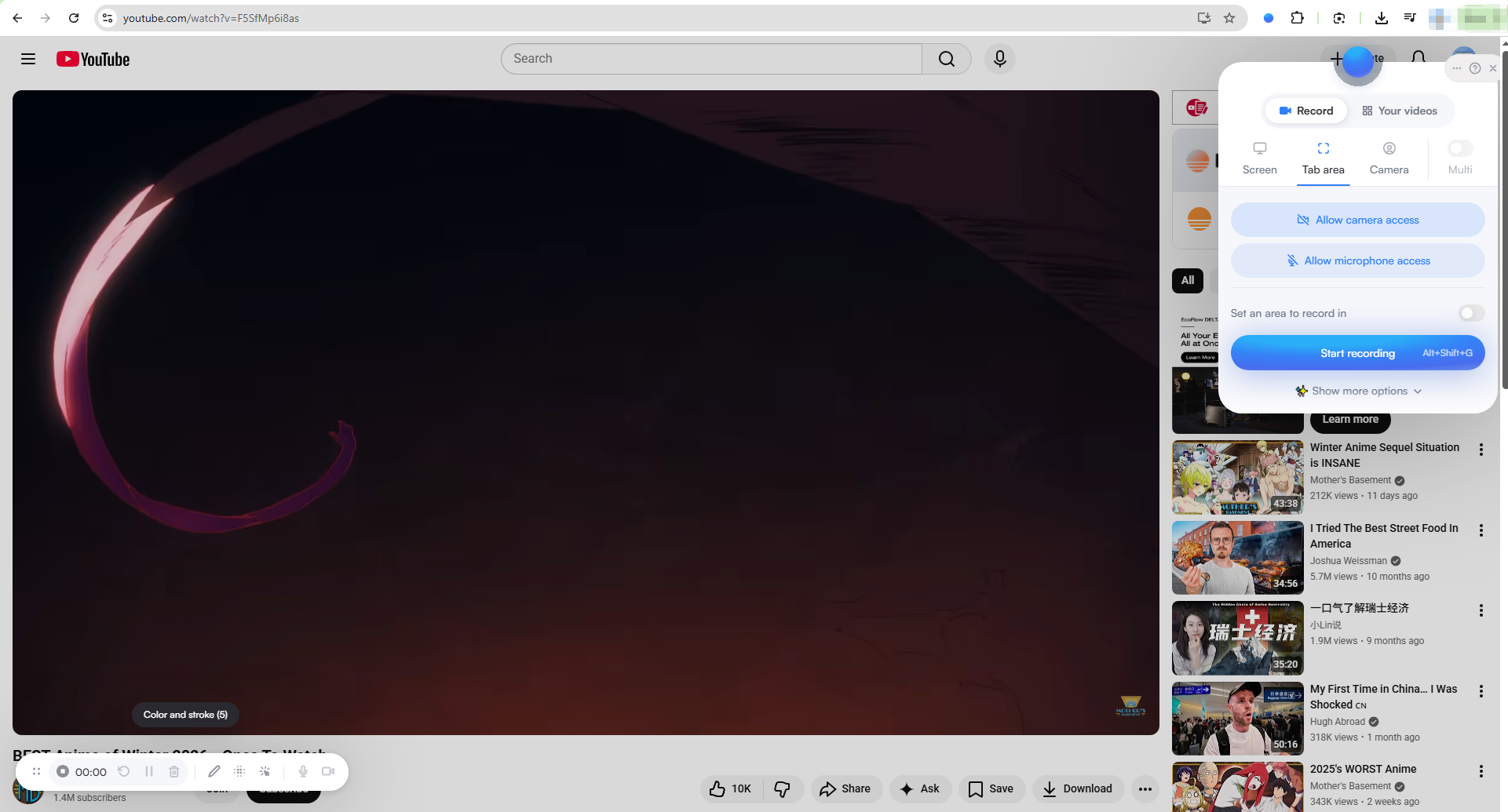
Click the Screenity icon to open the settings panel. Here, you can:
- Choose recording type (tab, window, or full screen)
- Enable microphone audio or system sound
- Turn webcam recording on or off
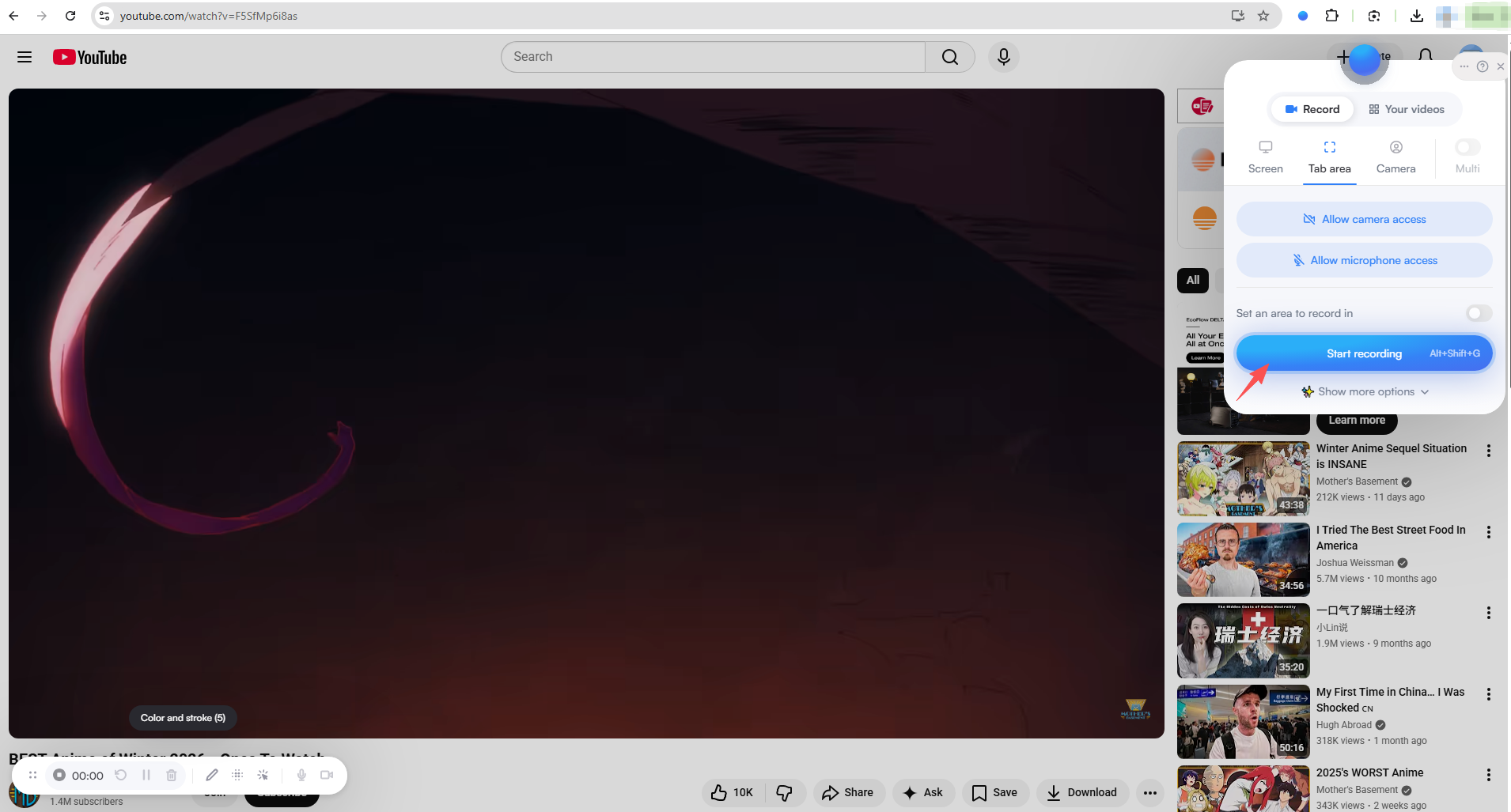
Step 3: Start Recording
클릭 공유하다 button. Chrome will ask you to select what you want to record (current tab, window, or entire screen). Once confirmed, Screenity begins recording immediately.
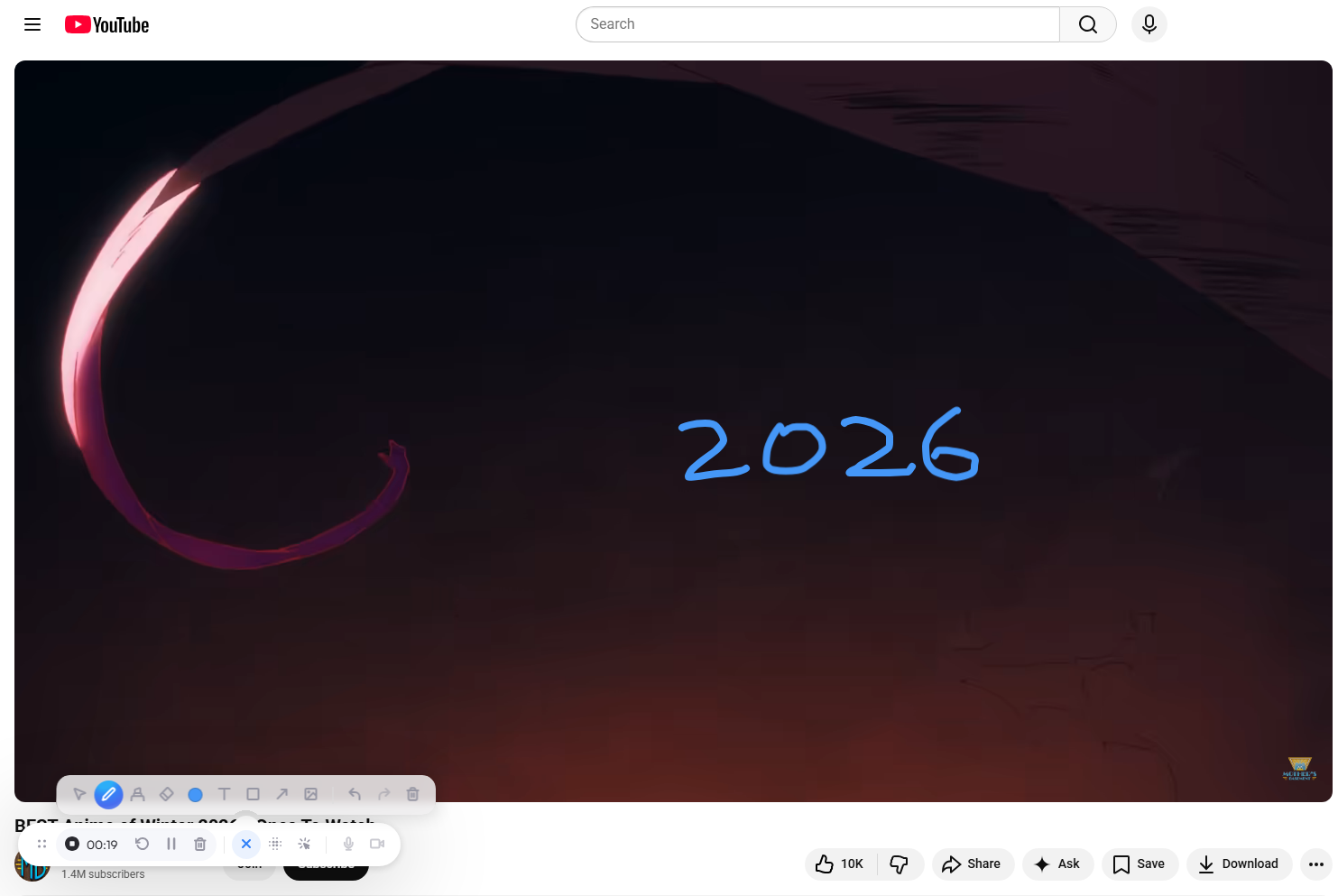
Step 4: Use Annotation Tools
During recording, Screenity allows you to:
- Draw on the screen
- Highlight areas
- Display mouse clicks and keystrokes
These tools are especially useful for tutorials and training videos.
Step 5: Stop and Export
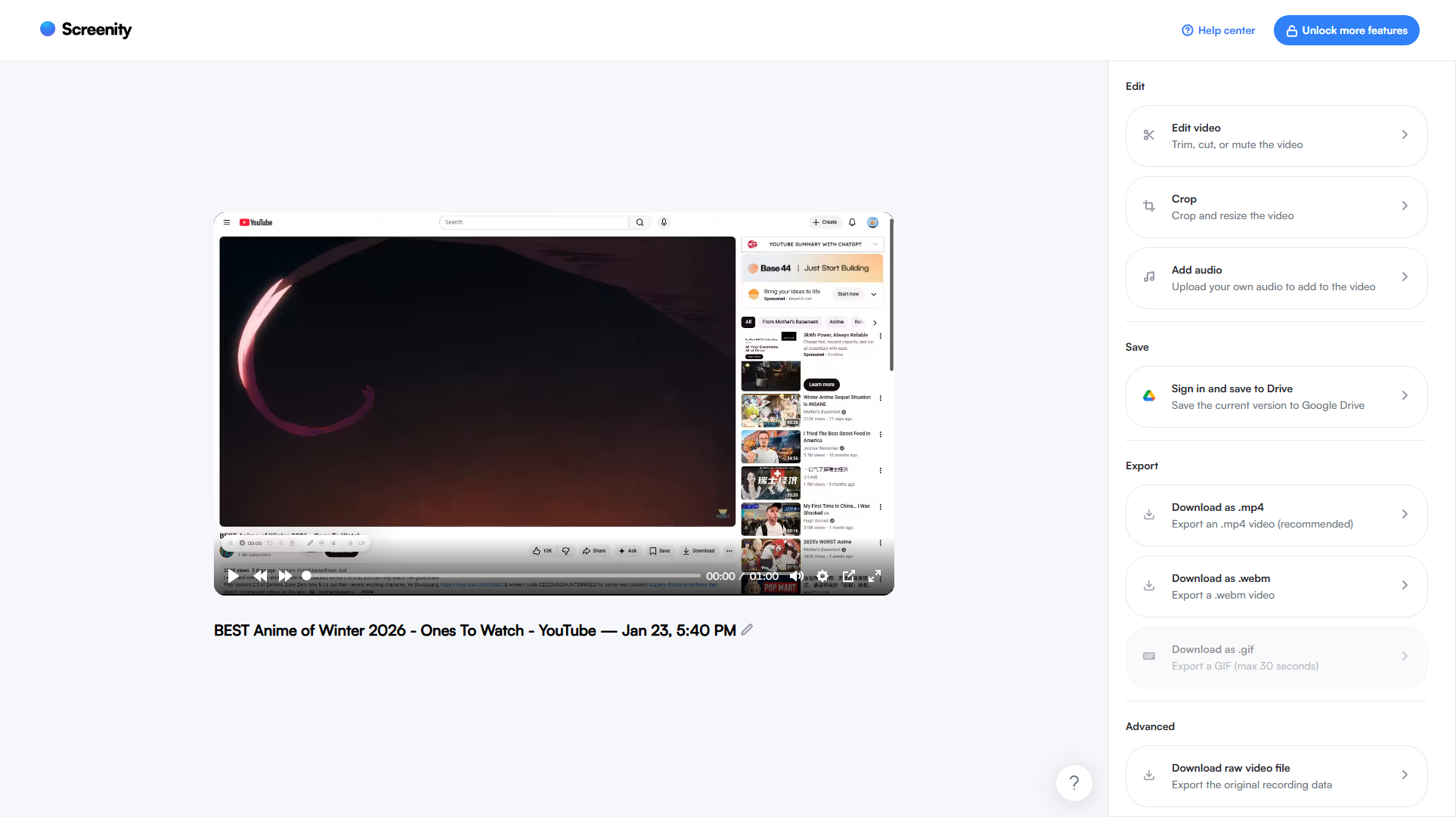
완료되면 클릭하세요 Stop Sharing . You can preview the video, then export it as a video file or save it locally. Screenity also allows basic trim or crop video, add audio and choose output format before export.
3. Pros and Cons of Screenity
Like any tool, Screenity has its strengths and weaknesses. Understanding both will help you decide if it’s the right screen recorder for your needs.
장점:
- Completely Free: No fees, watermarks, or forced upgrades.
- No Time Limits: Record as long as your system can handle.
- Easy to Use: Simple, browser-based interface ideal for beginners.
- Annotation Tools: Real-time drawing, cursor highlights, and click effects.
- 오픈소스: Transparent, community-driven development.
단점:
- Limited Recording Mode : Can’t customize area to record.
- Browser Performance Limits: Long or high-resolution recordings may lag or crash.
- Basic Recording: With no advanced recording settings and features.
- Not for High-FPS Content: Poor performance for gaming or fast-motion videos.
- Chrome-Only: Works only as a Chrome extension.
- Large File Issues: Long recordings may export slowly or fail.
4. Try the Easy-to-Use but Powerful Screen Recorder – Swyshare Recordit
For users who need higher stability, better performance, and professional-grade output, Swyshare Recordit is an excellent alternative to Screenity.
Swyshare Recordit is a desktop screen recorder for Windows and macOS designed to deliver smooth, high-quality recordings with minimal setup. Unlike browser extensions, Recordit operates independently of Chrome, allowing it to handle long recordings and high resolutions more reliably.
It combines simplicity with power, making it ideal for business presentations, online courses, software demos, and remote work.
주요 특징 Swyshare Recordit :
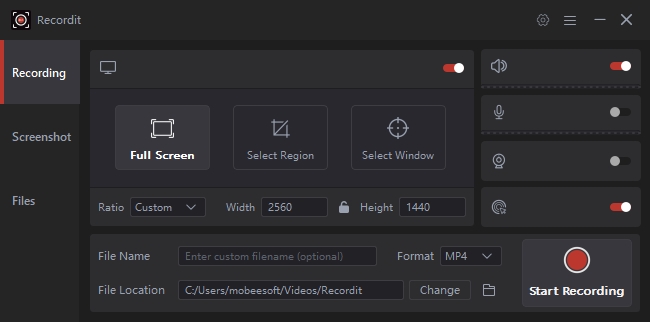
- Record the entire screen, a selected window, or a custom area
- 설치하다 Swyshare Recordit on your Windows or Mac to begin recording.
- Produce high-quality HD (or higher) recordings
- Support scheduled recording and instant replay
- Add mouse effects and on-screen drawing while recording
- Built-in editor to resize videos or canvas and add logos or background images
- Export recordings quickly in your preferred formats
- Deliver smooth, stable performance even during long recording sessions
사용하는 방법 Swyshare Recordit (Step by Step) :
- 얻다 Swyshare Recordit set up on your Windows or Mac and start recording.
- Launch the software and select full screen, window, or custom region recording.
- Enable microphone, system sound, or both depending on your needs.
- Click Start Recording to begin capturing your screen with stable performance, use the annotation and cursor tools when recording if needed.
- Click Stop Recording when finished; Find the recorded video in the “Files” tan and open the video editor if necessary.
5. 결론
Screenity Chrome Extension is a reliable starting point for anyone looking for a free and easy way to record their screen in Chrome. Its open-source design, lack of watermarks, and simple controls make it ideal for quick recordings, basic tutorials, and everyday screen capture tasks.
That said, Screenity is best suited for light use. When recording longer videos or aiming for more advanced features and smoother performance, its browser-based limitations become more apparent. In these cases, switching to a desktop solution makes a noticeable difference. Swyshare Recordit stands out as a powerful yet easy-to-use screen recorder that offers better stability, more flexible recording options, and professional-level output, making it a strong upgrade for serious screen recording needs.