
YouTube TV를 이용하면 실시간 TV를 시청하고 좋아하는 프로그램을 저장해 나중에 볼 수 있습니다. 클라우드 DVR 기능을 통해 구독자는 기존의 물리적 DVR 없이도 프로그램, 영화, 스포츠 및 기타 프로그램을 라이브러리에 추가할 수 있습니다. 하지만 녹화된 콘텐츠가 항상 예상대로 작동하는 것은 아닙니다. 녹화된 콘텐츠가 누락되거나, 재생이 예기치 않게 중단되거나, 녹화가 잘못된 지점에서 시작되거나, 주문형 비디오(VOD) 버전만 제공되는 경우가 발생할 수 있습니다.
이 가이드에서는 YouTube TV 녹화 콘텐츠에서 발생하는 가장 일반적인 문제들을 설명하고, 문제 해결 방법을 안내하며, 로컬에 녹화 권한이 있는 콘텐츠를 녹화하는 다른 방법을 소개합니다.
1. 유튜브 TV 녹화 콘텐츠 이용 시 흔히 발생하는 문제
다음은 YouTube TV로 녹화한 콘텐츠를 이용할 때 사용자들이 겪을 수 있는 가장 일반적인 문제점들입니다.
- 녹화된 콘텐츠가 누락되었습니다: 찾으려고 했던 프로그램이 라이브러리에 나타나지 않습니다.
- VOD 버전만 제공됩니다. DVR 녹화 기능 대신 YouTube TV는 주문형 버전을 제공합니다.
- 녹음 파일이 재생되지 않습니다: 해당 녹화 파일이 라이브러리에 나타나지만 로드되지 않거나 오류가 발생합니다.
- 동영상 재생이 계속 버퍼링됩니다. 네트워크 또는 장치 문제로 인해 재생이 반복적으로 중단됩니다.
- 녹음이 불완전합니다: 녹화는 프로그램이 이미 시작된 후 또는 예기치 않게 종료된 후에 시작됩니다.
- 잘못된 버전이 표시됩니다: 동일한 프로그램의 여러 버전이 존재할 수 있어 DVR 버전을 찾기가 어려울 수 있습니다.
- 녹화 시간이 만료되었습니다: 클라우드 DVR 녹화 파일은 영구적이지 않으며, 시간이 지나면 더 이상 이용할 수 없게 될 수 있습니다.
- 한 기기에서는 재생이 되지만 다른 기기에서는 재생이 되지 않습니다. 녹화된 파일이 컴퓨터에서는 정상적으로 작동하지만 스마트 TV, 휴대폰 또는 스트리밍 기기에서는 제대로 재생되지 않을 수 있습니다.
- 오디오 또는 비디오 문제: 녹화된 영상이 재생될 때 소리가 누락되거나, 소리가 왜곡되거나, 영상 재생에 문제가 발생할 수 있습니다.
2. YouTube TV 녹화 콘텐츠 문제 해결 방법은 무엇인가요?
문제를 파악했으면 가장 간단한 해결 방법부터 시작하여 고급 단계로 넘어가면서 다음 문제 해결 방법을 시도해 보세요.
2.1 도서관을 확인하세요
먼저 YouTube TV를 열고 확인하세요. 도서관 해당 섹션에서 녹화한 쇼, 영화, 스포츠 경기 또는 기타 프로그램의 이름을 검색하세요.
프로그램 목록에는 있지만 원하는 녹화본을 찾을 수 없는 경우, 다음 사항을 확인하십시오. 버전을 선택하세요 옵션입니다. YouTube TV는 DVR 버전과 주문형 버전을 포함하여 동일한 콘텐츠의 여러 버전을 제공할 수 있습니다.
2.2 프로그램이 녹화를 완료했는지 확인하십시오
방송이 시작된 후 YouTube TV 라이브러리에 프로그램을 추가하면 추가된 부분 이후의 내용만 녹화될 수 있으므로, 전체 프로그램을 녹화하려면 방송 시작 전에 추가하세요.
2.3 인터넷 연결 상태를 확인하세요
인터넷 연결 상태를 확인하고, 필요한 경우 라우터를 재시작하거나, 더 강력한 연결 또는 유선 연결로 전환해 보세요. 버퍼링이 계속되면 재생 품질을 낮춰 보세요.
2.4 YouTube TV 재시작
일시적인 앱 또는 브라우저 오류로 인해 녹화된 콘텐츠가 제대로 재생되지 않을 수 있습니다. YouTube TV(또는 브라우저)를 완전히 종료했다가 다시 실행한 후 로그인하고 녹화된 콘텐츠를 재생해 보세요.
2.5 기기를 재시작하세요
YouTube TV를 재시작해도 문제가 해결되지 않으면 기기를 껐다가 몇 초 기다린 후 다시 켜서 기기를 재시작한 다음 YouTube TV를 다시 실행하고 녹화된 영상을 다시 확인해 보세요.
2.6 YouTube TV 앱 또는 브라우저 업데이트
YouTube TV 앱, 브라우저 및 기기 운영 체제를 최신 버전으로 업데이트한 다음 기기를 다시 시작하고 녹화된 콘텐츠에 다시 액세스해 보세요.
2.7 YouTube TV 앱을 다시 설치하세요
문제가 지속되면 YouTube TV 앱을 제거했다가 다시 설치하고, 계정에 다시 로그인한 다음 라이브러리를 다시 확인하세요.
2.8 위치 정보 확인
YouTube TV의 위치 설정을 확인하고 현재 재생 위치가 정확한지 확인하여 원하는 콘텐츠를 이용할 수 있도록 하세요.
2.9 다른 기기에서 시도해 보세요
다른 기기에서 녹음 파일을 재생해 보세요. 만약 다른 기기에서 재생이 된다면, 원래 기기를 업데이트하거나 문제를 해결하여 재생 문제를 해결하십시오.
3. 고급: 문제 없이 YouTube TV 녹화하기 Swyshare Recordit
녹화 권한이 있는 콘텐츠의 로컬 사본을 만들고 싶다면 클라우드 DVR 재생에만 의존하는 대신 전용 화면 녹화 프로그램을 사용하는 것도 좋은 방법입니다.
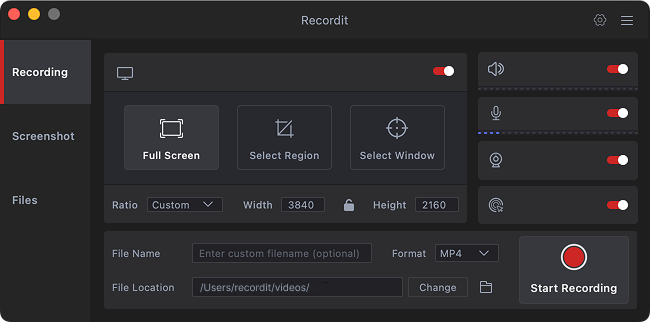
Swyshare Recordit 이 프로그램은 데스크톱 화면을 간편하게 캡처할 수 있도록 설계된 화면 녹화 프로그램입니다. 전체 화면, 선택한 영역 또는 특정 창을 녹화할 수 있으며, 비디오 및 오디오 설정을 사용자가 제어할 수 있습니다.
주요 특징 Recordit :
- 전체 화면 및 사용자 지정 영역 녹화
- 특정 창 녹화
- 시스템 오디오 및 마이크 녹음
- 웹캠 녹화 중
- 다양한 출력 형식
- 녹화 예약됨
- 사용자 지정 해상도 및 화면 비율 설정
- 스크린샷 캡처
- 편리한 녹음을 위한 단축키
- 기본 동영상 편집 도구
- 마지막 몇 초를 녹화하는 기능
YouTube TV를 녹화하는 방법 Recordit :
- 설치하고 실행하세요 Recordit .
- YouTube TV를 열고 녹화 권한이 있는 콘텐츠를 선택한 다음 녹화 영역을 선택하고 시스템 오디오를 활성화하세요.
- '녹화 시작'을 클릭하고 YouTube TV 영상을 재생하세요.
- 녹화가 끝나면 '녹화 중지'를 클릭한 다음, 선택한 출력 폴더에서 저장된 비디오를 찾으세요.
4. 결론
YouTube TV 녹화 콘텐츠 관련 문제는 녹화 누락, 잘못된 버전, 버퍼링, 재생 오류, 불완전한 녹화, 만료된 콘텐츠 등 다양한 형태로 나타날 수 있습니다. 다행히 라이브러리 확인, 녹화 상태 확인, 인터넷 연결 상태 개선, 앱 또는 기기 재시작, 소프트웨어 업데이트, 필요한 경우 YouTube TV 재설치 등을 통해 대부분의 문제를 해결할 수 있습니다.
하지만, 만약 여러분이 캡처할 권한이 있는 콘텐츠를 로컬에 녹화하는 더 유연한 방법이 필요하다면, Swyshare Recordit 유용한 대안입니다. 간단한 인터페이스, 유연한 녹화 모드, 오디오 지원, 예약 녹화, 다양한 출력 옵션 및 편집 기능을 통해 복잡한 녹화 설정 없이 데스크톱 콘텐츠를 쉽게 녹화할 수 있습니다.
YouTube TV의 클라우드 DVR 기능을 보완할 간단한 화면 녹화 앱을 찾는 사용자에게 적합합니다. Recordit 실용적인 선택지이므로 시도해 볼 만하다.