
영화 감상을 위해 자리에 앉았는데 오류 메시지 때문에 방해받는 것만큼 짜증나는 일도 드물죠. 넷플릭스 스트리밍 중 사용자들이 흔히 겪는 문제 중 하나는 오류 코드 M7361입니다. 이 오류는 주로 웹 브라우저, 특히 구글 크롬을 사용할 때 발생하며 동영상 재생 자체를 막을 수 있습니다.
다행히 오류 코드 M7361은 대개 쉽게 해결할 수 있습니다. 이 가이드에서는 넷플릭스 오류 코드 M7361이 무엇인지, 왜 발생하는지 설명하고, 원활한 스트리밍을 빠르게 복구할 수 있는 단계별 해결 방법을 안내해 드리겠습니다.
1. 넷플릭스 오류 코드 M7361은 무엇인가요?
넷플릭스 오류 코드 M7361(또는 오류 코드 m7361-1253)은 주로 웹 브라우저를 통해 콘텐츠를 스트리밍하려고 할 때 발생하는 재생 문제입니다. 이 오류는 구글 크롬에서 가장 흔하게 발생하지만, 다른 크로뮴 기반 브라우저에서도 나타날 수 있습니다.
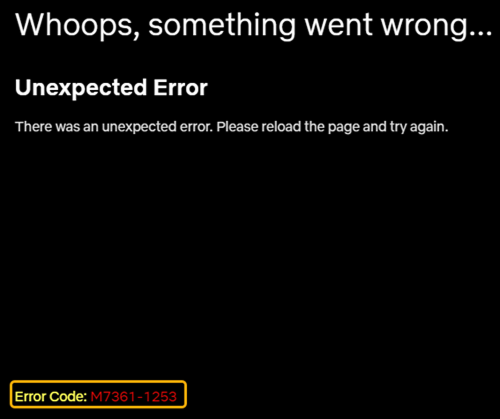
이 오류는 일반적으로 Netflix의 비디오 콘텐츠 재생을 방해하는 요소가 있음을 나타냅니다. 가장 흔한 원인은 다음과 같습니다.
- 오래된 브라우저 버전
- 비활성화되었거나 오래된 DRM 구성 요소(예: Widevine)
- 충돌하는 브라우저 확장 프로그램
- 손상된 캐시 또는 쿠키
- 하드웨어 가속 문제
간단히 말해, 사용자의 브라우저 환경에 문제가 있어 넷플릭스가 동영상을 제대로 확인하거나 로드할 수 없는 것입니다.
2. 넷플릭스 오류 코드 M7361을 해결하는 방법은 무엇인가요?
다음은 이 문제를 해결하는 가장 효과적인 방법입니다. 모든 방법을 다 시도할 필요는 없으며, 위에서부터 차례대로 시도하여 문제를 해결하십시오.
2.1 브라우저 업데이트
오래된 브라우저는 오류 M7361의 주요 원인 중 하나입니다.
단계:
크롬 브라우저를 열고 오른쪽 상단의 점 3개 메뉴를 클릭한 다음 '이동'을 클릭하세요. 도움말 > Google Chrome 정보 > 업데이트를 확인하고 사용 가능한 버전을 설치하도록 허용하세요. > 브라우저를 다시 시작하세요.
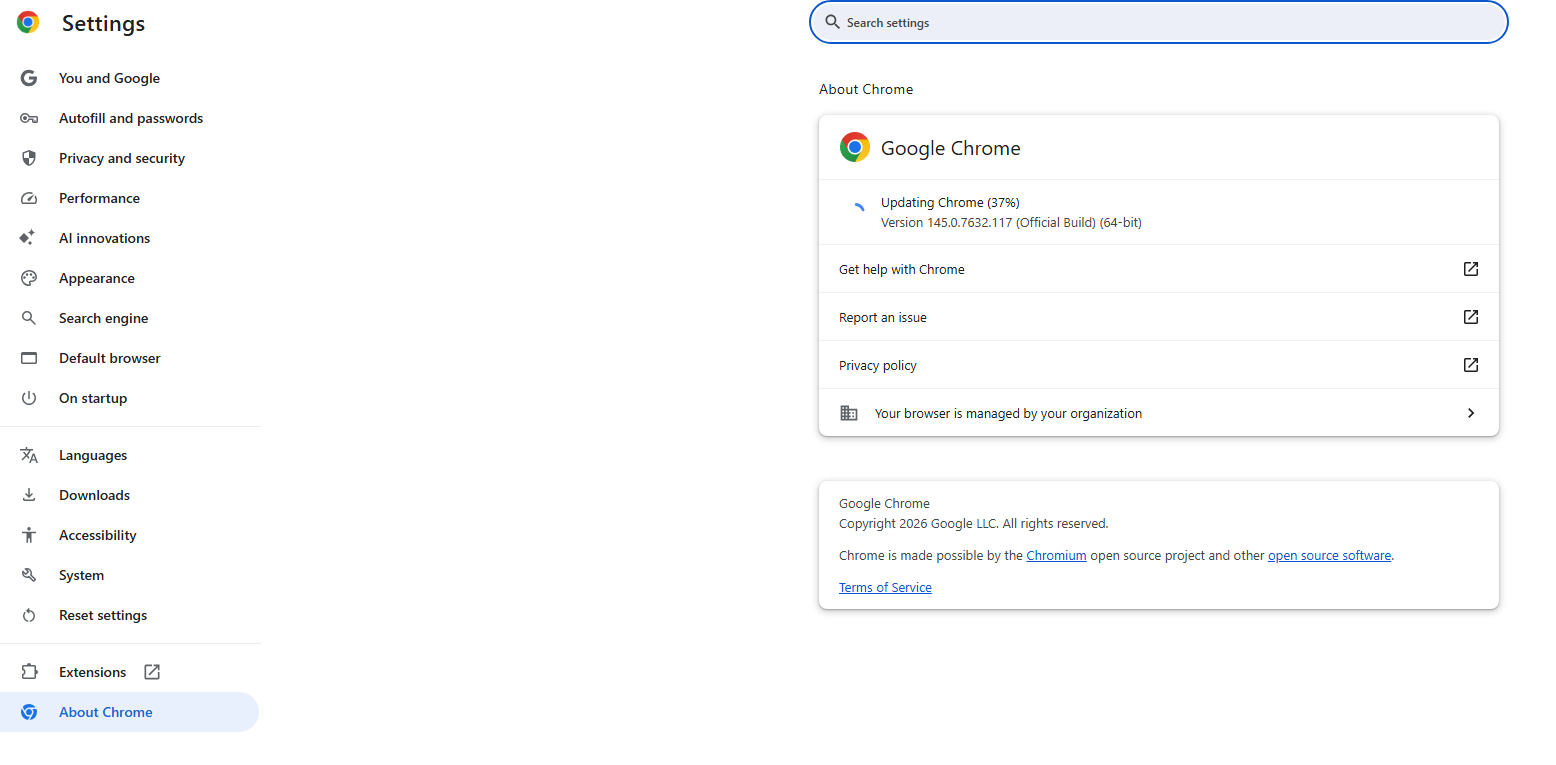
브라우저를 최신 버전으로 업데이트하면 넷플릭스의 최신 재생 요구 사항과 호환성을 유지할 수 있습니다.
2.2 Widevine 콘텐츠 암호 해독 모듈 활성화
넷플릭스는 DRM 구성 요소를 사용합니다. 와이드바인 콘텐츠를 보호하고 스트리밍하기 위해.
Chrome에서 Widevine을 확인하는 방법:
- 유형
chrome://components주소 표시줄에 - 위치하고 있다 Widevine 콘텐츠 암호 해독 모듈
- 딸깍 하는 소리 업데이트 여부를 확인하세요 그런 다음 브라우저를 다시 시작하세요.
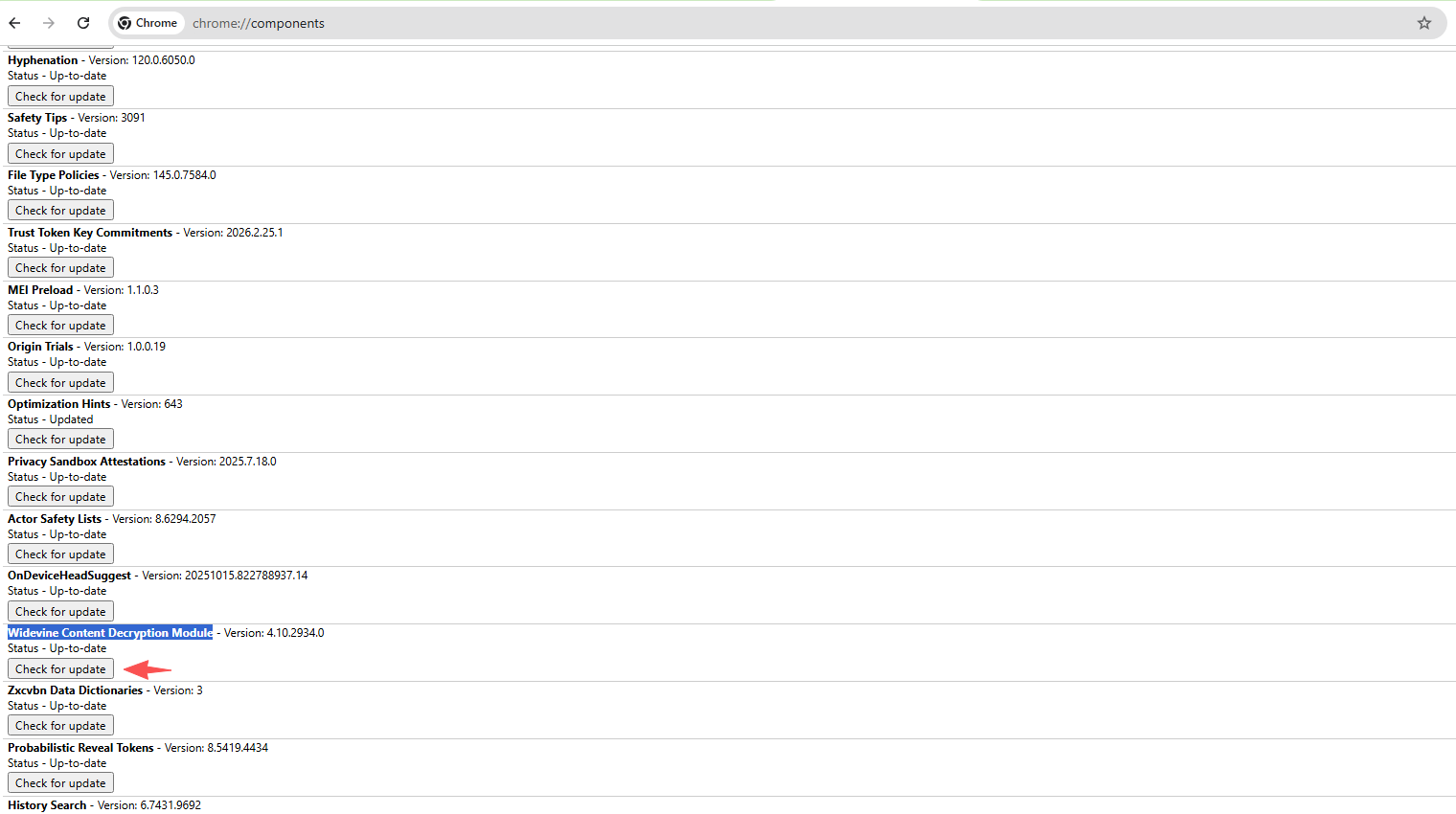
Widevine이 없거나 오래된 버전인 경우 Netflix 동영상이 재생되지 않습니다.
2.3 캐시 및 쿠키 삭제
손상된 캐시 또는 쿠키는 스트리밍을 방해할 수 있습니다.
단계:
브라우저 설정을 열고 다음으로 이동하세요. 개인정보 보호 및 보안 > 클릭 검색 데이터 삭제 선택: 쿠키 및 기타 사이트 데이터 그리고 캐시된 이미지 및 파일 > 클릭 데이터 지우기
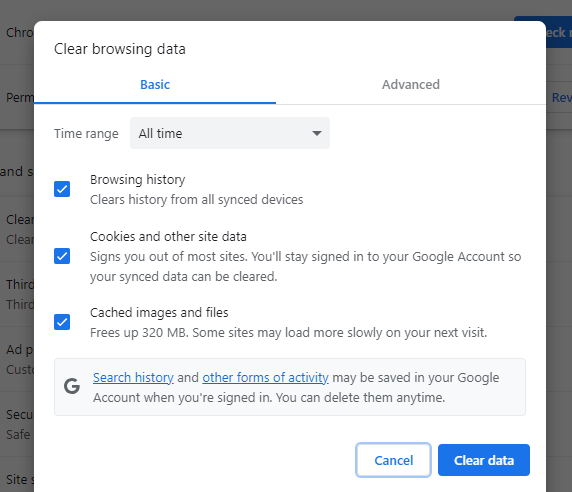
삭제 후 넷플릭스에 다시 로그인하여 다시 시도해 보세요.
2.4 브라우저 확장 프로그램 비활성화
일부 확장 프로그램, 특히 광고 차단기, VPN 또는 개인 정보 보호 도구는 넷플릭스 재생을 차단할 수 있습니다.
단계:
이동하다
chrome://extensions/
모든 확장 프로그램을 비활성화하고 브라우저를 다시 시작한 후 넷플릭스를 재생해 보세요.
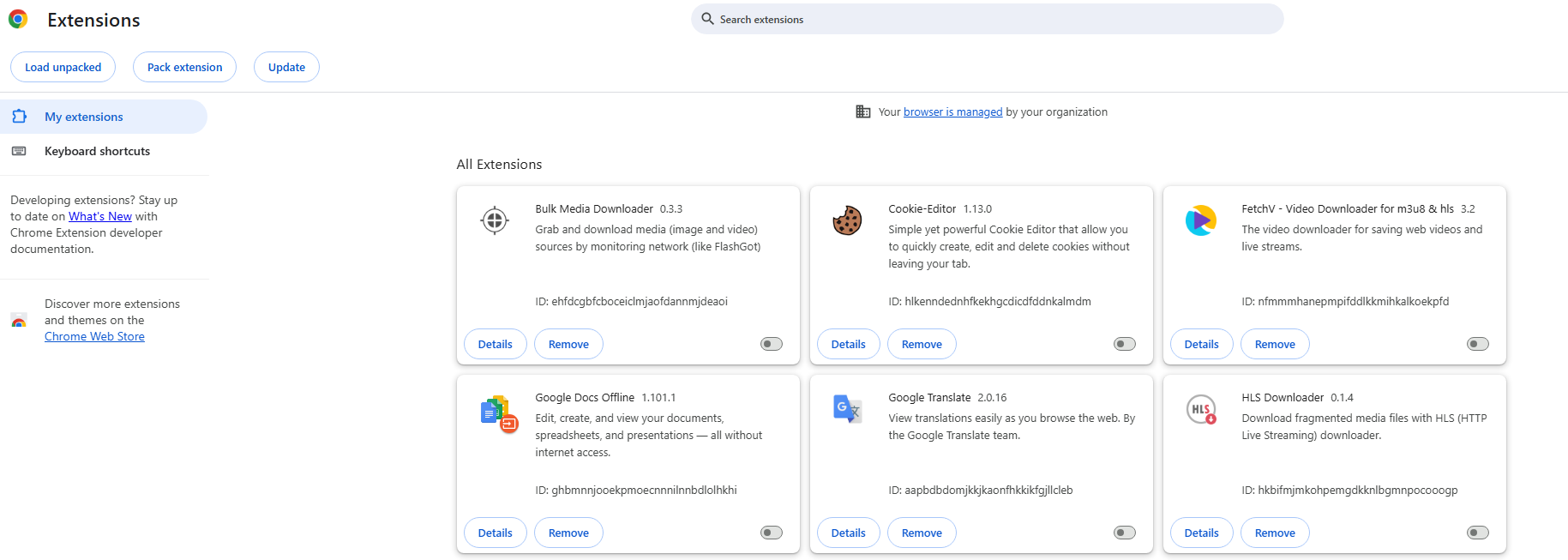
재생이 재개되면 확장 프로그램을 하나씩 활성화하여 문제가 있는 확장 프로그램을 찾아냅니다.
2.5 하드웨어 가속 끄기
경우에 따라 하드웨어 가속으로 인해 비디오 재생이 중단될 수 있습니다.
단계:
브라우저 설정으로 이동 > 다음으로 이동 체계 그리고 끄기 그래픽 가속이 가능한 경우 사용하십시오. 브라우저를 다시 시작하세요
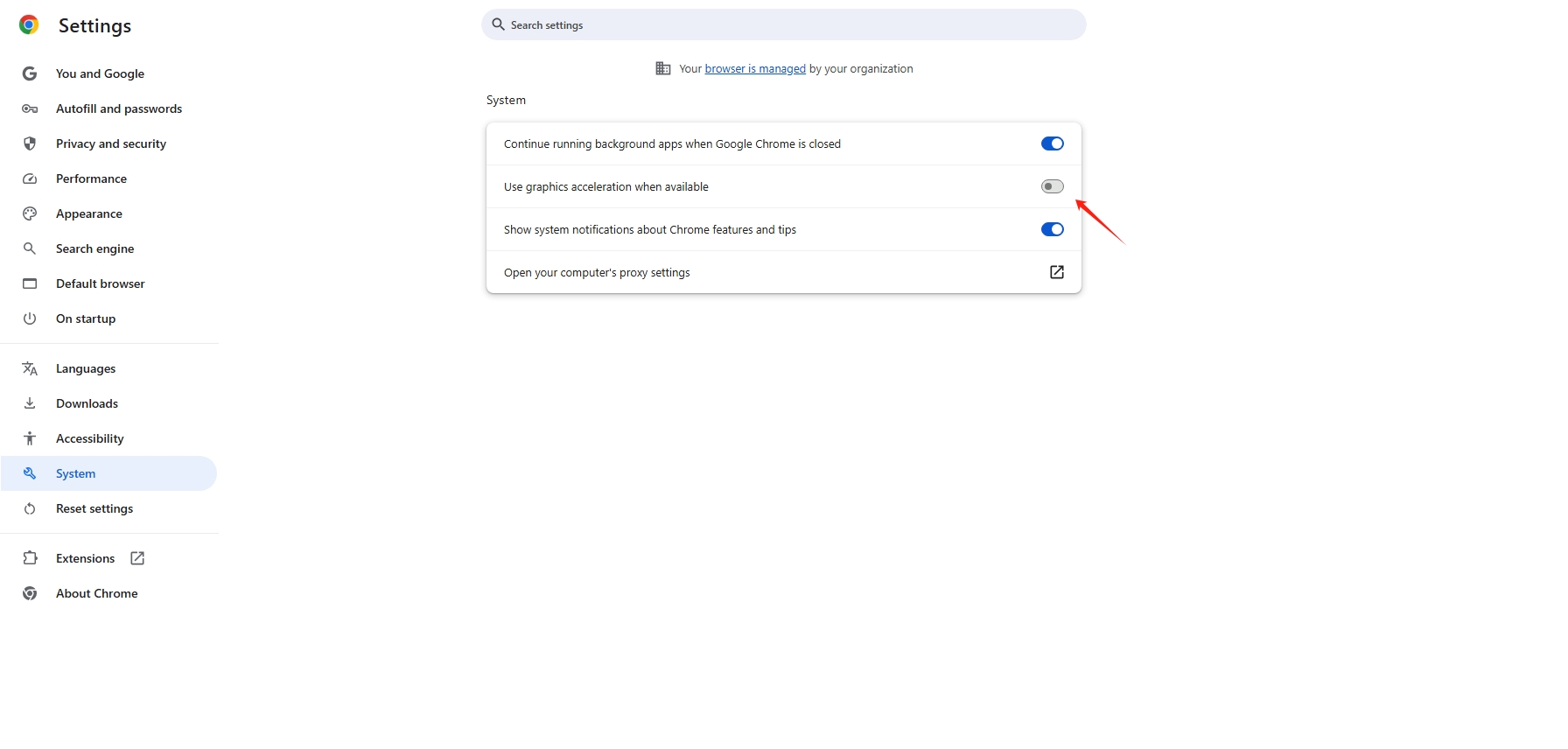
이렇게 하면 많은 경우 재생 오류를 해결할 수 있습니다.
2.6 시크릿 모드 사용해 보기
시크릿 모드는 모든 확장 프로그램을 비활성화하고 깨끗한 브라우징 환경을 제공합니다.
단계:
- 때리다 Ctrl + Shift + N (윈도우) 또는 Cmd + Shift + N (Mac) 새 시크릿 창을 열려면.
- 넷플릭스를 열고 스트리밍을 시도해 보세요.
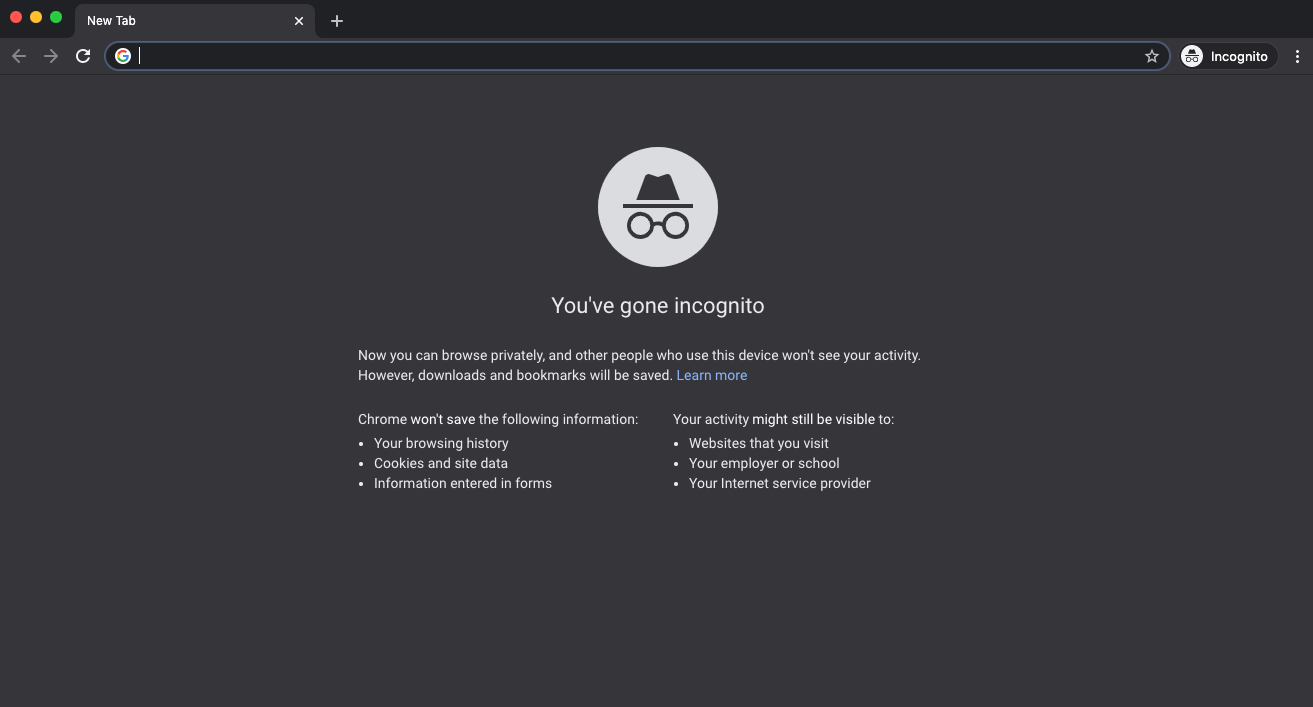
시크릿 모드에서 정상적으로 작동한다면, 문제는 확장 프로그램이나 캐시된 데이터와 관련이 있을 가능성이 높습니다.
2.7 인터넷 연결 상태를 확인하세요
흔하지는 않지만, 불안정한 인터넷 연결은 재생 오류를 일으킬 수 있습니다.
팁:
- 라우터를 재시작하세요
- 가능하다면 유선 연결로 전환하세요.
- VPN이나 프록시 사용을 피하세요
넷플릭스는 특정 IP 주소, 특히 의심스러운 IP 주소를 차단할 수 있습니다.
2.8 브라우저 재설치
위의 해결 방법들이 모두 효과가 없다면, 브라우저를 재설치하면 더 근본적인 문제를 해결할 수 있습니다.
단계:
- 브라우저를 제거하세요
- 공식 웹사이트에서 최신 버전을 다운로드하고 설치한 후 실행하세요.
- 넷플릭스에 다시 로그인하세요
이렇게 하면 완전히 깔끔한 설치가 보장됩니다.
3. 보너스: 넷플릭스 녹화하기 Swyshare Recordit
재생 문제를 해결한 후에도, 특히 오프라인에서 또는 끊김 없이 콘텐츠를 시청하고 싶을 때, 더욱 유연한 시청 방식이 필요할 수 있습니다. 바로 그럴 때 유용한 기능이 있습니다. Swyshare Recordit 들어온다.
Swyshare Recordit 이 앱은 가볍고 사용하기 쉬운 화면 녹화 프로그램으로, Netflix 재생을 포함하여 화면에서 고화질 비디오를 직접 캡처할 수 있습니다.
왜 사용합니까? Recordit ?
- 원활한 성능 - 끊김이나 검은 화면 없이 넷플릭스를 녹화하세요
- HD 녹화 넷플릭스 영상을 고화질로 캡처하세요
- 사용자 지정 화면 영역 – 전체 화면 또는 선택한 영역 녹화
- 시스템 오디오 캡처 – 원본 음질을 선명하게 저장하세요
- 빠른 내보내기 – 녹음 파일을 MP4 또는 기타 인기 있는 형식으로 저장하세요
- 원클릭 제어 – 간편한 녹화 시작/정지
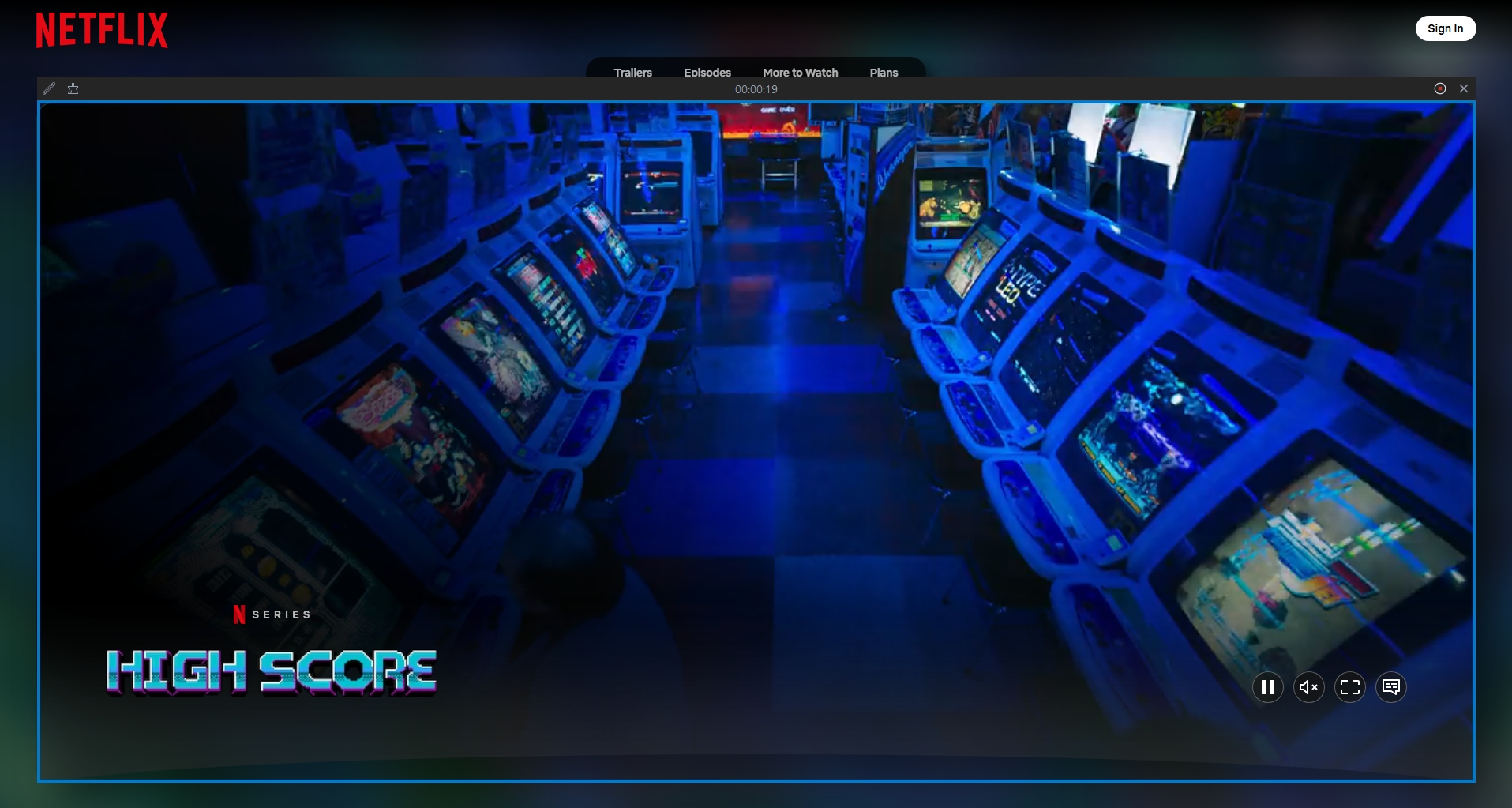
넷플릭스 녹화 방법 Recordit :
- 다운로드, 설치 및 실행 Swyshare Recordit 맥 버전 또는 윈도우 버전.
- 브라우저에서 넷플릭스를 열고 사용하세요. Recordit 녹음 영역을 선택하고 시스템 오디오를 켜려면
- 넷플릭스 영상을 재생하고 녹화를 시작하세요.
- 녹화가 끝나면 녹화를 중지하고 "파일" 탭에서 녹화된 넷플릭스 영상을 찾아보세요.
4. 결론
넷플릭스 오류 코드 M7361-1253 이는 흔히 발생하는 브라우저 관련 재생 문제로, 일반적으로 오래된 구성 요소, DRM 문제 또는 확장 프로그램 충돌로 인해 발생합니다. 다행히 브라우저를 업데이트하거나, Widevine을 활성화하거나, 캐시를 삭제하거나, 문제가 있는 확장 프로그램을 비활성화하면 이 문제를 신속하게 해결할 수 있습니다.
스트리밍 외에 더욱 유연한 시청 경험을 원하신다면, Swyshare Recordit 훌륭한 해결책입니다. 넷플릭스 콘텐츠를 끊김 없이 녹화하고 오류, 버퍼링 또는 인터넷 연결 상태에 대한 걱정 없이 언제든지 시청할 수 있습니다.
간단하고 효율적이며 초보자에게 친숙한 도구를 원하신다면, Recordit 넷플릭스 이용 경험을 더욱 풍성하게 해 줄 믿음직한 동반자로 강력 추천합니다.