
주제를 조사하거나, 학습 자료를 수집하거나, 레시피를 저장하거나, 즐겨찾는 웹사이트를 관리하는 등 어떤 목적이든 유용한 웹페이지를 쉽게 다시 방문할 수 있는 방법은 중요합니다. 가장 일반적인 해결책은 북마크 기능입니다. 북마크는 브라우저에 내장된 기능으로, 링크를 저장해 나중에 빠르게 접근할 수 있도록 해줍니다.
북마크는 빠르고 편리하며 Google Chrome, Microsoft Edge, Mozilla Firefox, Safari를 포함한 거의 모든 최신 웹 브라우저에서 사용할 수 있습니다. 한 번의 클릭이나 키보드 단축키로 웹페이지를 북마크에 추가하고 폴더로 정리하여 나중에 쉽게 참조할 수 있습니다.
이 가이드에서는 다양한 브라우저에서 웹페이지를 북마크하는 방법을 배우게 됩니다. 자, 그럼 시작해 볼까요?
1. 웹페이지를 즐겨찾기에 추가하는 방법은 무엇인가요?
웹페이지를 즐겨찾기에 추가하는 것은 사용하는 브라우저와 관계없이 빠르고 간편합니다.
1.1 Google Chrome에서 웹페이지 북마크하기
Google Chrome은 북마크 기능을 간편하게 제공합니다.
단계:
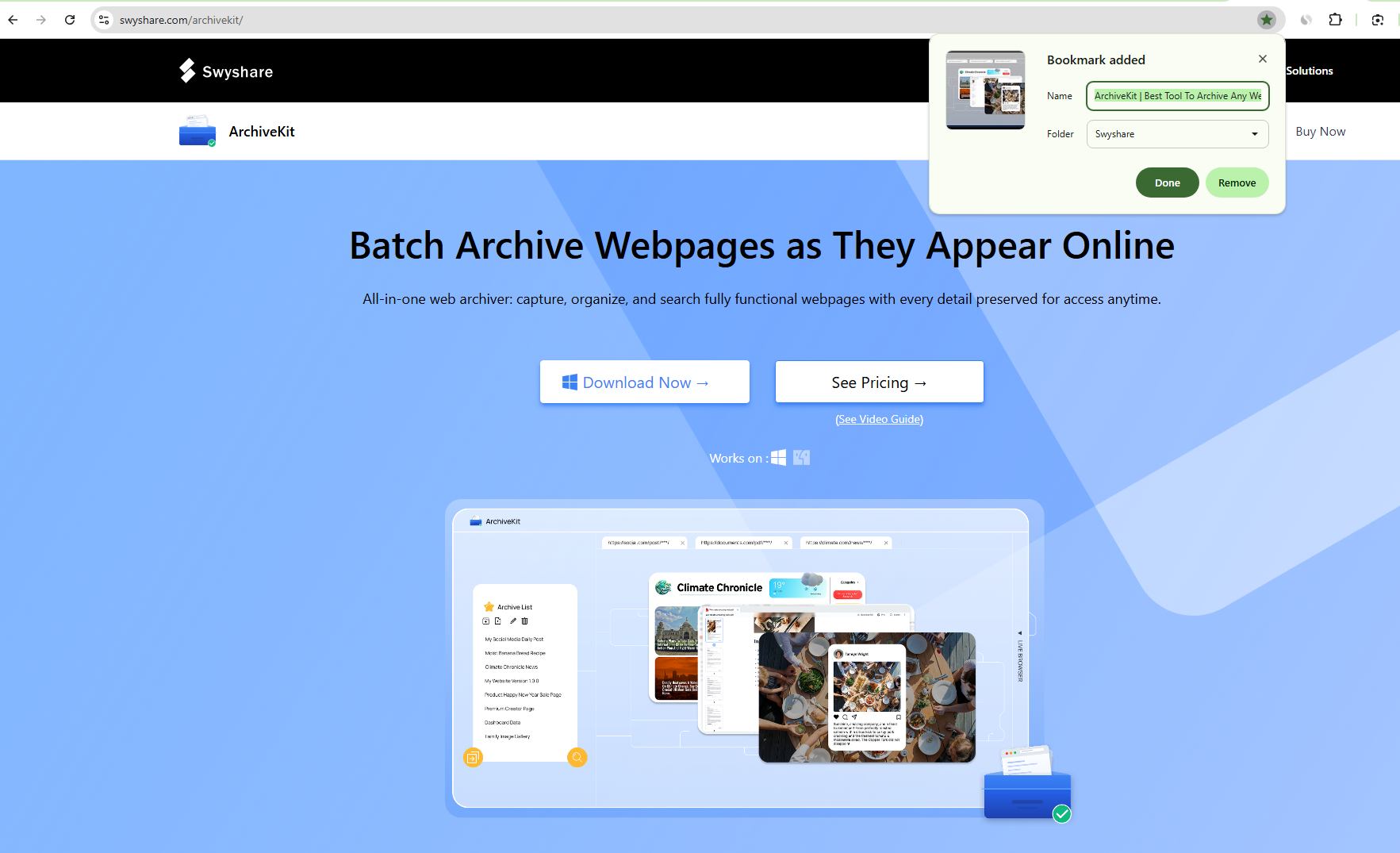
- 저장하고 싶은 웹페이지를 열고, 그 다음 클릭하세요. 별 주소 표시줄 오른쪽 끝에 있는 아이콘입니다.
- 원하는 경우 북마크 이름을 수정하세요.
- 예를 들어 폴더를 선택하세요. 북마크 바 또는 다른 북마크 , 그런 다음 클릭하세요 완료 .
키보드 단축키:
- 윈도우/리눅스: Ctrl + D
- 스코틀랜드 사람: Command + D
북마크 바를 표시하는 또 다른 방법은 다음과 같습니다. Ctrl + Shift + B (윈도우) 또는 Command + Shift + B (Mac용) 즐겨찾는 웹사이트에 더 빠르게 접속할 수 있습니다.
1.2 Microsoft Edge에서 웹페이지 북마크하기
Microsoft Edge는 북마크를 다음과 같이 부릅니다. 즐겨찾기 하지만 과정은 거의 동일합니다.
단계:
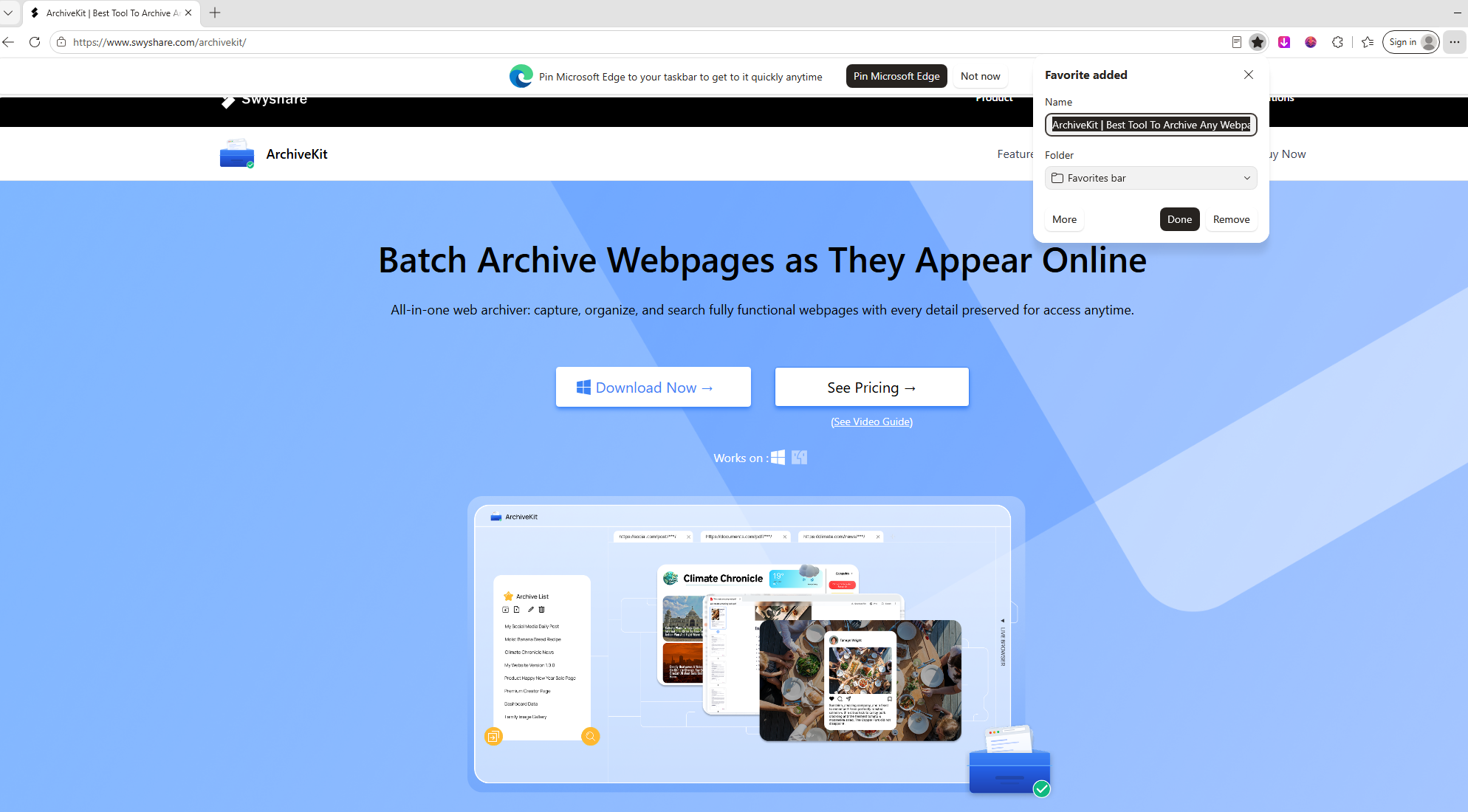
- 웹페이지를 방문하고 핥으세요 즐겨찾기 (별표) 상.
- 필요에 따라 북마크 이름을 사용자 지정하세요.
- 폴더를 선택하고 클릭하세요. 완료 .
지름길:
- 윈도우: Ctrl + D
- 스코틀랜드 사람: Command + D
1.3 모질라 파이어폭스에서 웹페이지 북마크하기
Firefox는 유연한 북마크 관리 기능을 제공합니다.
단계:
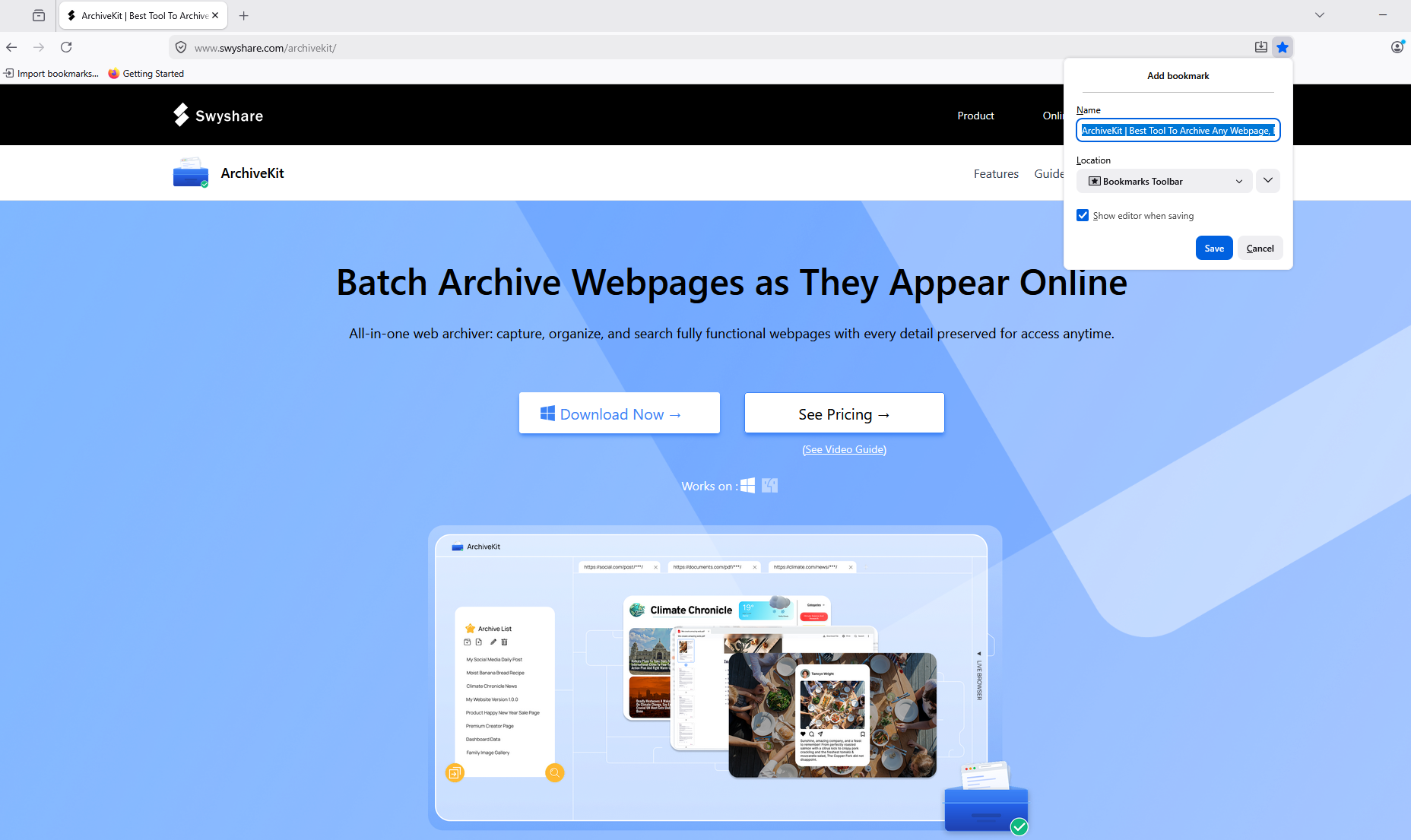
- 웹페이지를 열고 클릭하세요 별 주소 표시줄의 아이콘.
- 원하시면 북마크 이름을 변경하세요.
- 대상 폴더를 선택하고 클릭하세요. 완료 .
Firefox는 태그 기능도 지원하여 북마크를 더 쉽게 검색하고 정리할 수 있습니다.
1.4 사파리에서 웹페이지 북마크하기
Safari 사용자는 몇 번의 클릭만으로 macOS에서 페이지를 북마크할 수 있습니다.
단계:
- 웹페이지를 여세요.
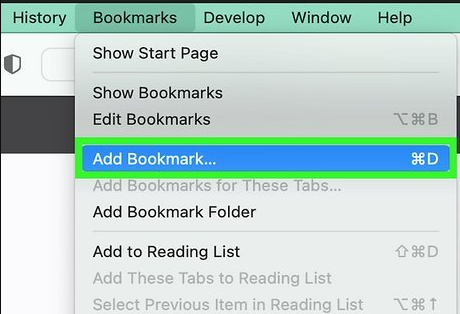
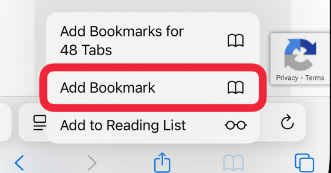
- 선택하다 즐겨찾기 > 즐겨찾기 추가 메뉴 표시줄에서 선택하거나 클릭하세요. 공유하다 버튼을 누르고 선택하세요 즐겨찾기에 추가 .
- 북마크를 저장할 위치를 선택하고 클릭하세요. 추가하다 .
지름길:
- Command + D
1.5 모바일 기기에서 웹페이지 북마크하기
안드로이드용 크롬:
웹페이지를 열고 > 점 세 개 메뉴를 탭한 다음 > 을 탭하세요. 별 상.
iPhone 또는 iPad의 Safari:
웹페이지를 열고 > 탭하세요 공유하다 버튼 > 선택 즐겨찾기에 추가 폴더를 선택하고 탭하세요. 구하다 .
2. 북마크의 한계
북마크는 링크를 빠르게 저장하는 데 매우 유용하지만 중요한 한계점이 있습니다.
책갈피는 웹페이지 주소만 저장합니다. 저장 당시 화면에 표시되었던 콘텐츠는 보존하지 않습니다. 웹페이지가 변경되거나 사라지면 책갈피가 가리키는 페이지는 더 이상 필요한 정보를 제공하지 않을 수 있습니다.
흔히 발생하는 문제점은 다음과 같습니다.
- 웹사이트들이 오래된 기사들을 삭제합니다.
- 제품 페이지가 업데이트되었거나 판매가 중단되었습니다.
- 소프트웨어 업데이트 후 문서 내용이 변경됩니다.
- 뉴스 기사는 발행 후 편집됩니다.
- 웹사이트 개편 과정에서 URL이 변경됩니다.
- 페이지를 삭제하면 404 오류가 발생합니다.
이러한 상황에서는 원래 콘텐츠를 더 이상 사용할 수 없기 때문에 북마크의 유용성이 크게 떨어집니다.
정보 보존이 중요하다면 북마크 기능만으로는 충분하지 않습니다.
3. 웹페이지를 보관하려면 다음을 사용하세요. Swyshare 북마크 대신 ArchiveKit 사용
영구적으로 보관하고 싶은 웹페이지의 경우, 북마크보다는 아카이빙이 훨씬 더 안정적인 해결책입니다.
단순히 링크를 저장하는 북마크와는 달리, Swyshare 아카이브킷 웹페이지 자체를 저장합니다. 이를 통해 아카이브 당시의 콘텐츠를 그대로 보존할 수 있으므로 향후 변경이나 삭제로부터 보호할 수 있습니다.
ArchiveKit의 주요 기능:
- 온라인에 표시되는 웹페이지 전체를 저장합니다.
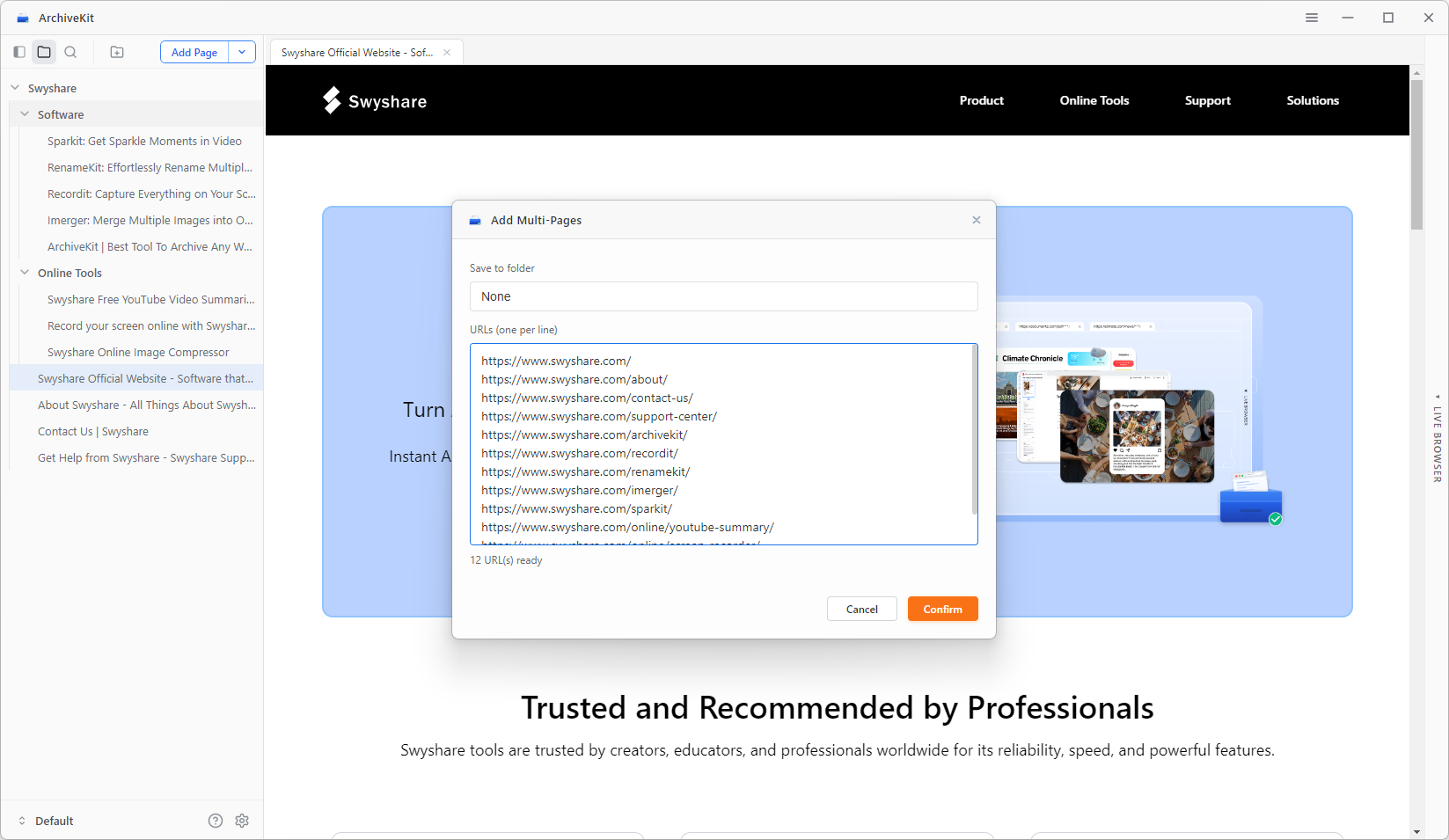
- 일괄 아카이빙을 위한 웹페이지 URL 목록을 가져옵니다.
- 앱 내에서 웹페이지에 직접 접근하고 저장할 수 있는 라이브 브라우저 모드입니다.
- 저장된 웹페이지를 간편하게 관리하고 찾을 수 있습니다.
- 중요 텍스트를 선택하고 읽기 모드로 전환하여 더욱 깔끔한 읽기 환경을 누리세요.
- Windows 및 macOS 플랫폼 모두에서 사용 가능합니다.
ArchiveKit을 사용하여 웹페이지를 보관하는 방법:
- ArchiveKit을 다운로드하여 설치한 다음 Windows 또는 macOS 컴퓨터에서 실행하세요.
- 보존하고 싶은 웹페이지의 URL을 복사하여 ArchiveKit의 내장 브라우저 또는 URL 가져오기 패널에 붙여넣으세요.
- 각 웹페이지가 완전히 로드되어 모든 텍스트, 이미지 및 대화형 콘텐츠가 완전히 표시될 때까지 기다린 다음 아카이빙 프로세스를 시작하여 전체 오프라인 사본을 저장하십시오.
- 보관해둔 웹페이지를 폴더나 컬렉션으로 정리하면 필요할 때 언제든 쉽게 찾아보고 검색하고 다시 방문할 수 있습니다.
4. 결론
웹페이지를 북마크하는 것은 나중에 다시 방문할 웹사이트를 저장하는 가장 쉬운 방법 중 하나입니다. 모든 주요 브라우저는 즐겨찾는 사이트를 정리하고 클릭 한 번으로 쉽게 접근할 수 있도록 내장된 북마크 기능을 제공합니다. 일상적인 웹 브라우징에서 북마크는 여전히 편리하고 효과적인 기능입니다.
하지만 북마크는 웹페이지 자체가 아닌 URL만 저장합니다. 콘텐츠가 변경되거나 이동되거나 사라지면 북마크를 통해 더 이상 원하는 정보에 접근할 수 없을 수도 있습니다.
거기가 바로 그곳이에요 Swyshare ArchiveKit은 단연 돋보입니다. 언젠가는 깨질 수 있는 링크에 의존하는 대신, ArchiveKit은 웹페이지 전체를 보존하여 원본 사이트가 변경되거나 오프라인 상태가 되더라도 중요한 온라인 콘텐츠를 다시 방문할 수 있도록 해줍니다. 전체 웹페이지 아카이빙, 오프라인 액세스, 체계적인 저장 기능을 지원하는 ArchiveKit은 소중한 웹 자료를 장기간 보존하고자 하는 모든 사용자에게 훨씬 더 안정적인 솔루션을 제공합니다. 단순한 북마크 이상의 기능이 필요하다면, Swyshare 아카이브킷 가장 중요한 웹페이지를 보호하는 데 이상적인 도구입니다.