
OBS Studio is a popular screen-recording and streaming tool used for capturing gameplay, tutorials, presentations, and desktop activity. However, one common problem is that OBS records sound normally while the video footage is missing, black, or frozen. You may see the audio meters responding and hear your microphone or desktop audio, only to discover that the final recording has no usable picture. In this guide, we’ll explain why OBS records sound but not video, show you some quick solutions, and introduce a simpler option for quick recording video with sound.

1. Why Is OBS Recording Sound but Not Video?
Here are some of the most common reasons for this problem:
- Hidden video source: Your Display Capture, Window Capture, Game Capture, or webcam source may be disabled or covered by another source.
- Wrong window or display: OBS may be capturing a different application, window, or monitor than the one you intended to record.
- Game Capture compatibility: Certain games or applications may not work properly with OBS Game Capture, resulting in a black screen.
- GPU conflict: OBS and the application you’re recording may be running on different GPUs, which can interfere with video capture.
- Incorrect recording settings: If the preview works but the saved file contains only audio, the recording format or encoder may be causing the problem.
- Software interference: Gaming overlays, screen recorders, graphics utilities, or other programs can sometimes interfere with OBS.
- Outdated software: An outdated version of OBS or graphics driver may cause compatibility problems with newer applications.
2. How to Fix Sound Is Showing Up on OBS but Not Video Footage?
2.1 Check the OBS Preview
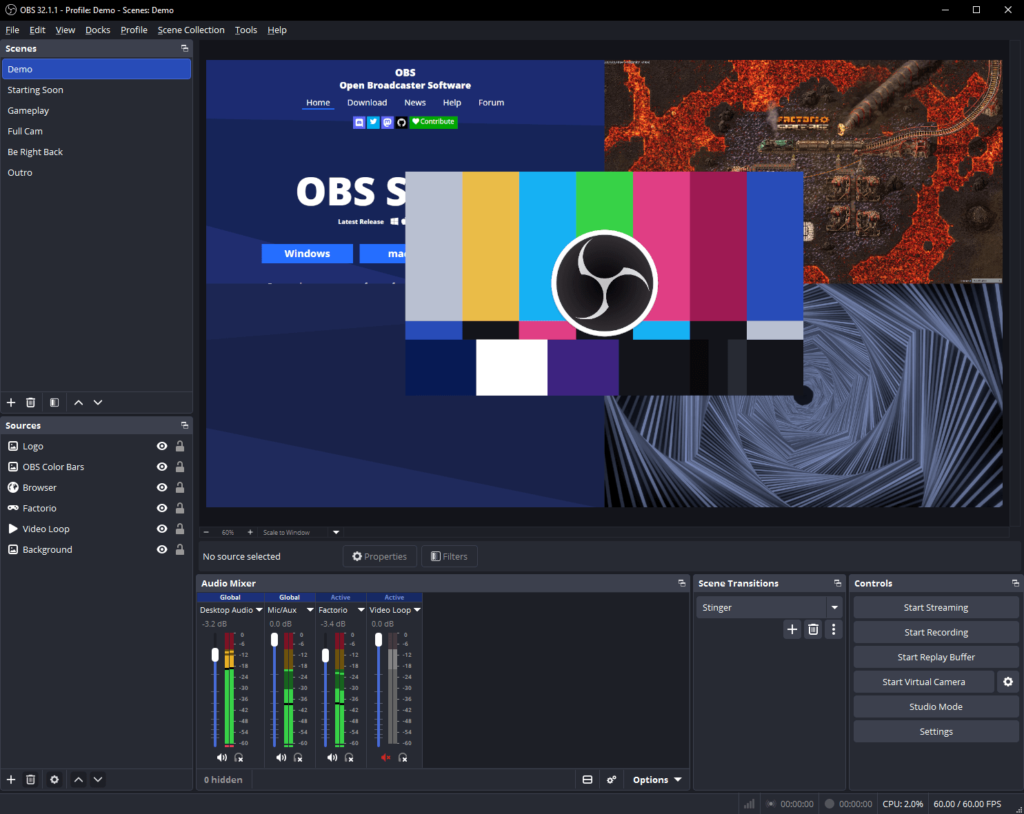
The OBS preview shows whether the program is receiving your video source correctly.
단계:
- Open OBS Studio and look at the main preview area.
- Check whether your screen, game, or application appears.
- If the preview is black, check your video source.
- If the preview works but the recording doesn’t, check your output settings.
2.2 Make Sure Your Video Source Is Visible
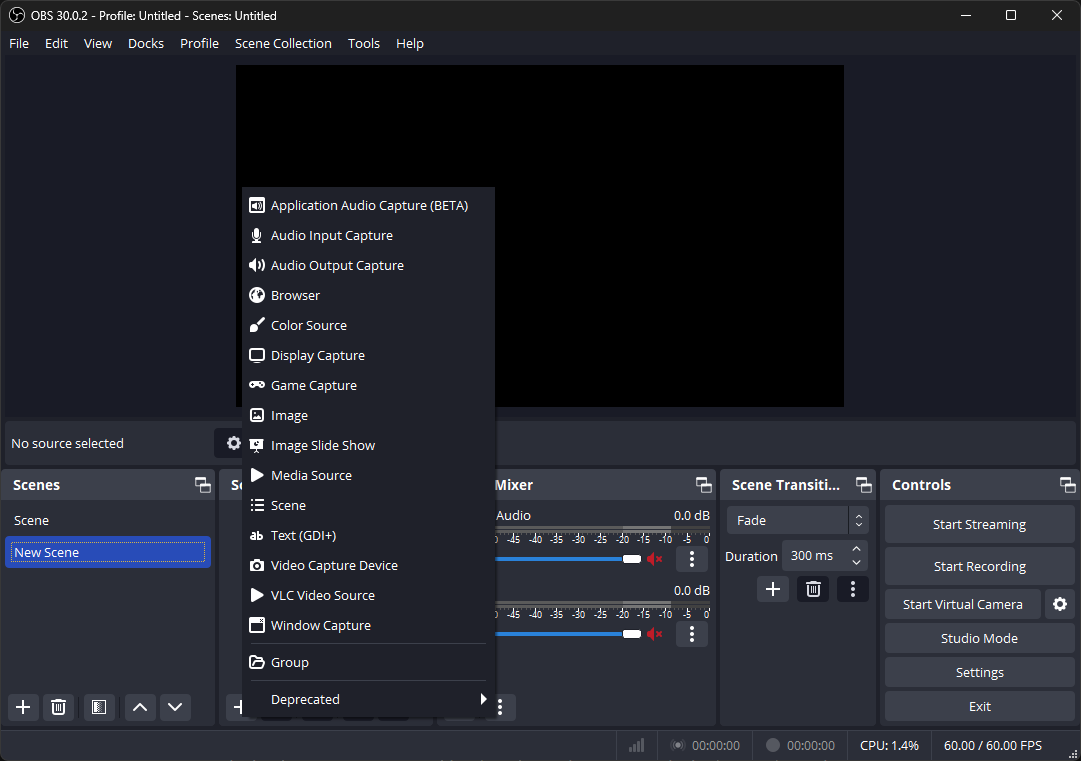
A disabled or hidden source won’t appear in the recording even if your audio sources continue working.
단계:
- Find the 출처 panel in OBS.
- Locate your Display Capture, Window Capture, or Game Capture source.
- Make sure the eye icon is enabled and check the source order.
- Temporarily hide other sources that could be covering the footage.
2.3 Check the Capture Source Settings
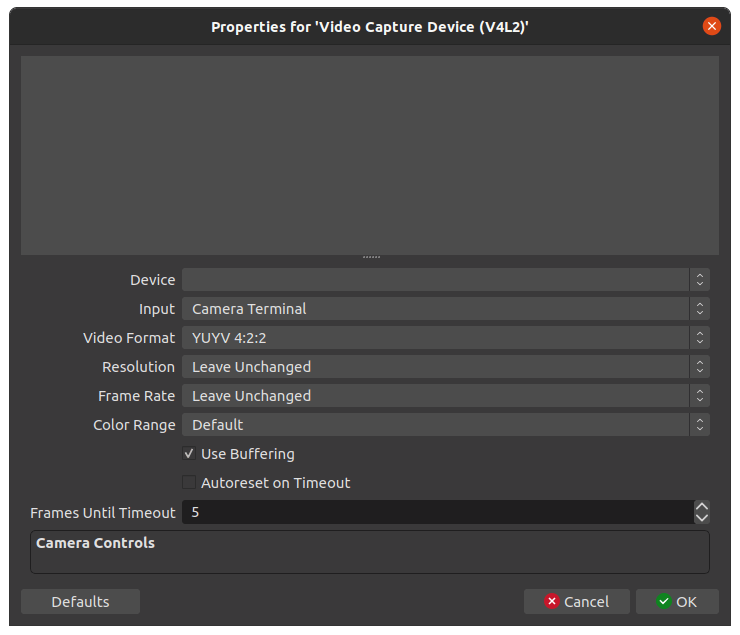
OBS may simply be targeting the wrong display or application.
단계:
- Right-click your video capture source and select 속성 .
- Choose the correct display or application window.
- Confirm the settings and check the preview again.
2.4 Switch to a Different Capture Method
Some applications don’t work properly with a particular capture method.
단계:
- If you’re using Game Capture, try Window Capture.
- If Window Capture fails, try Display Capture.
- Check whether the video appears in the preview, then make a short test recording.
This is especially useful when Game Capture produces a black screen while the game’s audio continues to work.
2.5 Check Your GPU Configuration
Computers with integrated and dedicated GPUs can sometimes cause capture conflicts.
단계:
- Open your computer’s graphics settings.
- Check which GPU OBS is using.
- Check which GPU the application you’re recording is using.
- Configure the applications appropriately.
- Restart OBS and the target application.
2.6 Review OBS Recording Settings
If the preview displays video but the final recording doesn’t, investigate your recording configuration.
단계:
- 열려 있는 설정 in OBS, select 산출 그리고 가세요 녹음 .
- Review the recording format and encoder, then save any changes.

Always check a short test recording before starting a long session. This prevents you from discovering later that the footage wasn’t captured.
2.7 Disable Other Recording Software and Overlays
Another application may be interfering with OBS’s ability to capture video.
단계:
- Close other screen-recording programs.
- Temporarily disable gaming or graphics overlays.
- Restart OBS and test your video source again.
If the problem disappears, reopen your applications one at a time to identify the conflicting software.
2.8 Update OBS and Graphics Drivers
Compatibility problems can sometimes be caused by outdated software.
단계:
- Check whether you’re running the latest stable OBS version.
- Update your graphics driver if necessary.
- Restart your computer, then open OBS and test the recording again.
3. Simply Record Video With Sound With Swyshare Recordit
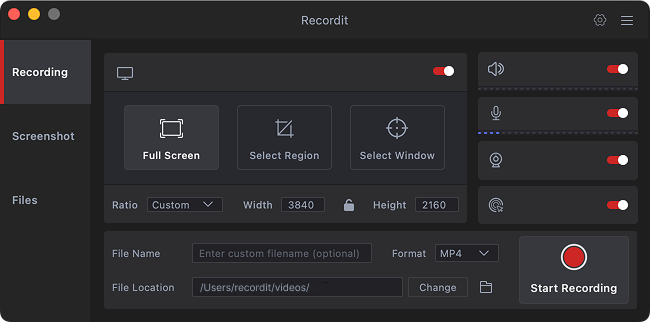
If troubleshooting OBS feels complicated, Swyshare Recordit provides a simpler way to capture your screen with sound.
주요 특징 Recordit :
- Capture the full screen, a selected area, or an application.
- Record system sound, microphone, and webcam together.
- Includes scheduled recording, instant replay, mouse effects, and drawing tools.
- Built-in editor to trim, resize, add watermarks, backgrounds, and webcam footage.
- Export recordings in formats such as MP4, GIF, and MP3.
How to Record Video With Sound Using Recordit :
- 열려 있는 Swyshare Recordit Windows 또는 Mac 컴퓨터에서.
- Choose the full screen, a window, or a specific region; Enable the system sound and/or microphone you want to record.
- Click the Start Recording button and begin your on-screen activity.
- Stop the recording when finished and save the video to your preferred location.
4. 결론
When OBS records sound but fails to capture video footage, the problem is usually related to the video source, capture method, GPU configuration, recording settings, or software conflicts. By checking the OBS preview, verifying your video source, switching capture methods, reviewing GPU and recording settings, and updating OBS and your drivers, you can often resolve the issue.
However, if you simply want a quick and reliable way to record video with sound, Swyshare Recordit can be a convenient alternative. With flexible screen recording, system and microphone audio capture, webcam support, and useful recording tools, Recordit offers a straightforward workflow without requiring extensive OBS configuration. For users who prefer simplicity and want to get recording quickly, Recordit is worth trying.