
Renaming files is one of the most common file management tasks in Linux. Whether you’re organizing documents, cleaning up downloaded files, managing photos, or maintaining server directories, knowing how to rename files efficiently can save significant time and effort.
Linux offers several ways to rename files, ranging from simple command-line commands for individual files to powerful batch-renaming tools that can process hundreds or even thousands of files at once. The flexibility of Linux makes it easy for both beginners and advanced users to handle file renaming tasks according to their needs.
In this guide, you’ll learn how to rename files in Linux using built-in commands and discover a bonus method for batch renaming files on Windows and Mac.
1. How to Rename Files in Linux?

1.1 Rename a Single File Using the mv Command
The most common way to rename a file in Linux is with the
mv
command. Although
mv
is primarily designed to move files, it can also rename them when the source and destination are in the same directory.
Syntax:
mv old_filename.txt new_filename.txt예:
mv report.txt annual_report.txtAfter running this command,
report.txt
will be renamed to
annual_report.txt
.
To verify the change, use:
lsThis will display the updated filename in the current directory.
1.2 Rename Files in a Different Directory
You can also rename files located in other directories by specifying the full path.
예:
mv /home/user/documents/file.txt /home/user/documents/new_file.txtThis renames the file while keeping it in the same folder.
1.3 Rename Directories
그만큼
mv
command can also rename folders.
예:
mv old_folder new_folderThis changes the directory name from
old_folder
에게
new_folder
.
1.4 Rename Multiple Files Using a Loop
When dealing with many files, manually renaming each one becomes inefficient. Linux shell loops can automate repetitive renaming tasks.
For example, suppose you want to add a prefix to all
.jpg
files:
for file in *.jpg; do
    mv "$file" "photo_$file"
done
Files such as:
image1.jpg
image2.jpg
image3.jpg
become:
photo_image1.jpg
photo_image2.jpg
photo_image3.jpg
1.5 Batch Rename Files with the rename Command
Many Linux distributions include a utility called
rename
, which allows pattern-based file renaming.
예:
rename 's/.txt/.md/' *.txtThis changes all
.txt
파일을
.md
.
Before:
notes.txt
guide.txt
report.txt
After:
notes.md
guide.md
report.md
그만큼
rename
command is especially useful for replacing text, changing extensions, and applying naming rules across large file collections.
1.6 Convert Filenames to Lowercase
Sometimes downloaded files contain inconsistent capitalization. You can standardize filenames using:
rename 'y/A-Z/a-z/' *예:
Vacation.JPG
Report.PDF
Photo.PNG
becomes:
vacation.jpg
report.pdf
photo.png
This makes filenames more consistent and easier to manage.
1.7 Add Sequential Numbers to Files
If you need ordered filenames, a shell script can automatically add numbers.
예:
count=1
for file in *.jpg; do
    mv "$file" "image_$count.jpg"
    ((count++))
done
Result:
image_1.jpg
image_2.jpg
image_3.jpg
This method is commonly used when organizing image galleries, scanned documents, or project assets.
1.8 Rename Files with a Graphical File Manager
If you prefer a graphical interface, many Linux desktop environments include built-in renaming features.
Popular file managers include:
- Nautilus (GNOME)
- Dolphin (KDE Plasma)
- Thunar (XFCE)
- Nemo (Cinnamon)
Most allow you to right-click a file and select 이름 바꾸기 . Some also support bulk renaming through dedicated tools or extensions.
This option is ideal for users who are less comfortable with terminal commands.
2. Bonus: Batch Rename Files on Windows and Mac with RenameKit
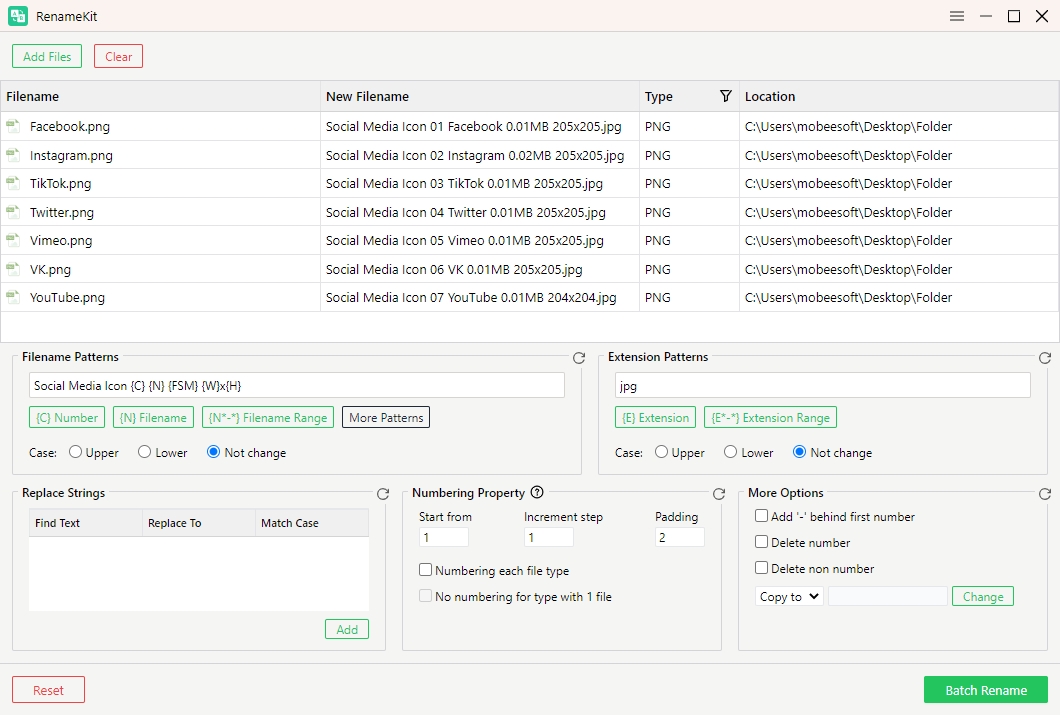
While Linux offers powerful command-line tools, users on Windows and macOS often look for a simpler way to rename large numbers of files. This is where RenameKit can help.
RenameKit is a dedicated batch file renaming application designed to make file organization fast and straightforward. Instead of writing scripts or remembering command syntax, users can apply renaming rules through an intuitive interface.
Some common tasks you can perform with RenameKit include:
- Batch rename hundreds or thousands of files
- Add prefixes and suffixes
- Replace text in filenames
- Remove unwanted characters
- Change letter case
- Add sequential numbering
- Preview results before applying changes
How to rename files using RenameKit:
- Install and launch RenameKit on your Windows or Mac device.
- Quickly add files or folders by dragging and dropping them into the workspace.
- Apply powerful renaming rules, including text replacement, automatic numbering, metadata-based naming, and more.
- Preview the changes in real time to ensure every filename looks exactly the way you want.
- Click Batch Rename to process all selected files instantly and save valuable time.
3. 결론
Renaming files in Linux can be as simple or as powerful as your workflow requires. The
mv
command is perfect for quickly renaming individual files and folders, while shell scripts and the
rename
utility make it easy to process large groups of files efficiently.
For Linux users who enjoy command-line flexibility, these built-in tools provide extensive control over file management tasks. However, users on Windows and macOS may prefer a more visual approach to batch renaming.
If you frequently need to rename multiple files, add numbering, replace text, or standardize filenames across large collections, RenameKit is an excellent solution. Its user-friendly interface, batch processing capabilities, and preview features help streamline file organization while reducing the risk of mistakes.
No matter which platform you use, mastering file renaming techniques can significantly improve productivity and keep your files organized. For fast and reliable batch renaming on Windows and Mac, RenameKit is a tool worth considering.