Getty Images Watermark Remover: Best Tools to Try in 2026

If you’ve ever downloaded a preview image from Getty Images, you’ve probably noticed the prominent watermark across it. While watermarks help protect copyrighted stock content, they can be inconvenient when you’re working with an image you own or have permission to edit. Fortunately, modern image-editing tools offer several ways to clean up unwanted watermarks.
In this guide, we’ll explore some of the best Getty Images watermark remover options to try in 2026, and explain how each one works.
1. Best Recommended: AI Online Watermark Removers
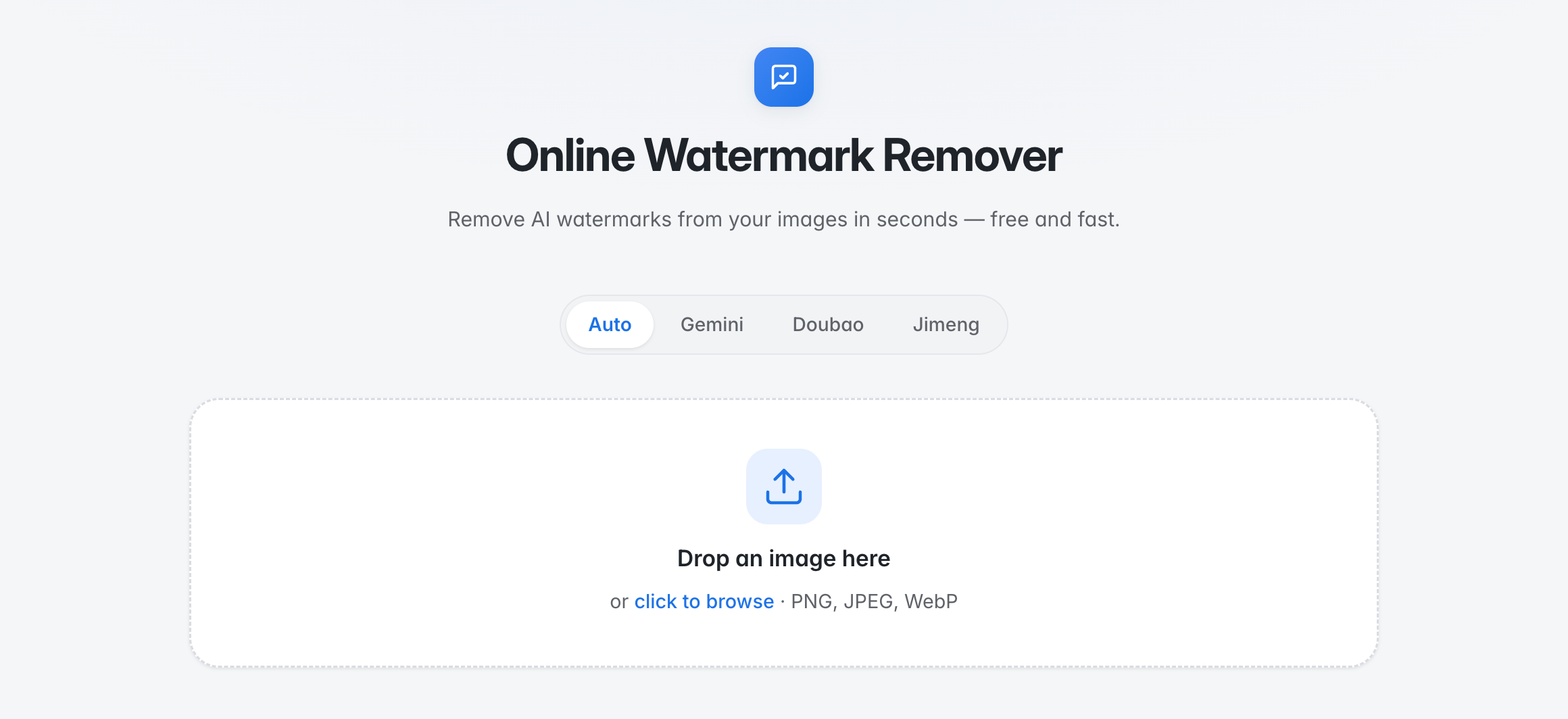
For users who want a quick and simple solution, AI image watermark removers can be a convenient choice. Instead of manually cloning pixels or adjusting multiple layers, these tools use AI to identify the selected area and generate replacement content based on the surrounding image.
Most online tools work directly in a web browser, so there’s no need to install complicated editing software. This makes them particularly useful for beginners or users who only occasionally need to clean up an image they are authorized to edit.
Popular AI Watermark Removers:
- Swyshare Watermark Remover – An online AI-powered tool designed to remove unwanted objects and watermarks from images with a simple upload-and-process workflow.
- Cleanup.pictures – A browser-based image cleanup tool that allows users to brush over unwanted elements and let AI reconstruct the selected area.
- Fotor – An online photo editor that includes AI-powered object removal and other image-editing features for quick visual cleanup.
- InsMind – An AI image editor that offers object-removal features and can be used for removing unwanted elements from images.
The exact results can vary depending on the image resolution, watermark position, background complexity, and the particular AI model used by the service.
How to Remove a Watermark with an AI Online Tool:
- Open your preferred online AI image tool like Swyshare Watermark Remover and upload the image you want to edit.
- The AI will erase the watermark, analyze the surrounding pixels and generate a replacement for the selected area.
- Preview the edited image the export it on your device.
2. More Methods to Remove Watermarks
AI tools aren’t the only option. If you need more control over the editing process, desktop image editors can provide additional tools for cleaning up unwanted elements.
Method 1: Using Adobe Photoshop
Adobe Photoshop is one of the most widely used professional image-editing applications. It provides several tools that can help remove unwanted elements from images you are legally allowed to edit.
Useful features include Remove Tool , Content-Aware Fill , Healing Brush , 그리고 Clone Stamp .
Here’s a basic workflow:
- Open the authorized image in Photoshop.
- Create a duplicate of the original layer.
- Select the watermark using a selection tool or the Remove Tool.
- Apply Content-Aware Fill or another suitable removal feature.
- Inspect the surrounding area for artifacts.
- Use the Clone Stamp or Healing Brush to refine imperfections.
- Export the finished image.
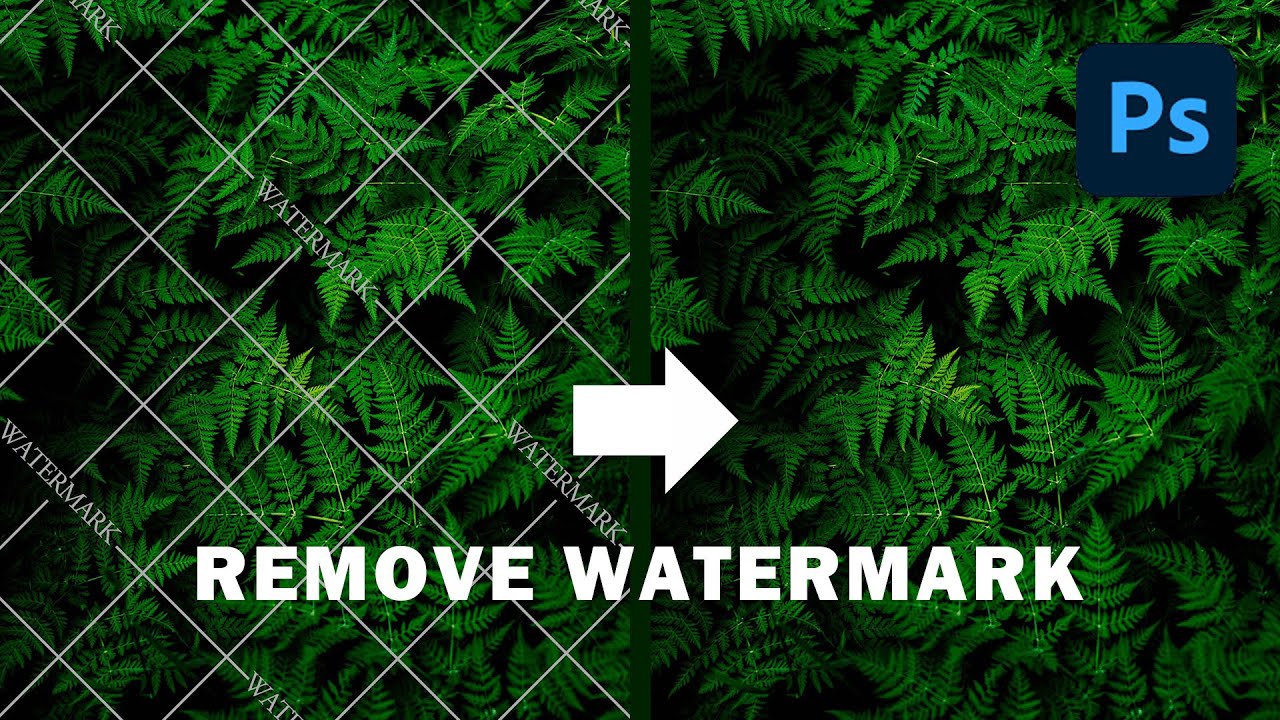
Photoshop is especially useful when the watermark overlaps complicated backgrounds. You can manually control which pixels are used to reconstruct the affected area, giving you more flexibility than fully automated online tools.
The downside is that Photoshop has a steeper learning curve and is more than many users need for occasional image cleanup.
Method 2: Using GIMP
GIMP is a free, open-source image editor available for Windows, macOS, and Linux.
Although it doesn’t provide exactly the same workflow as Photoshop, GIMP includes useful tools such as Clone , Heal , and selection tools that can be used to clean up unwanted elements.
To use GIMP:
- Open your image.
- Duplicate the original layer.
- Select the Clone or Heal tool.
- Choose a clean area near the watermark.
- Paint over the unwanted area gradually.
- Adjust the brush size and opacity when necessary.
- Review the result and export the finished image.
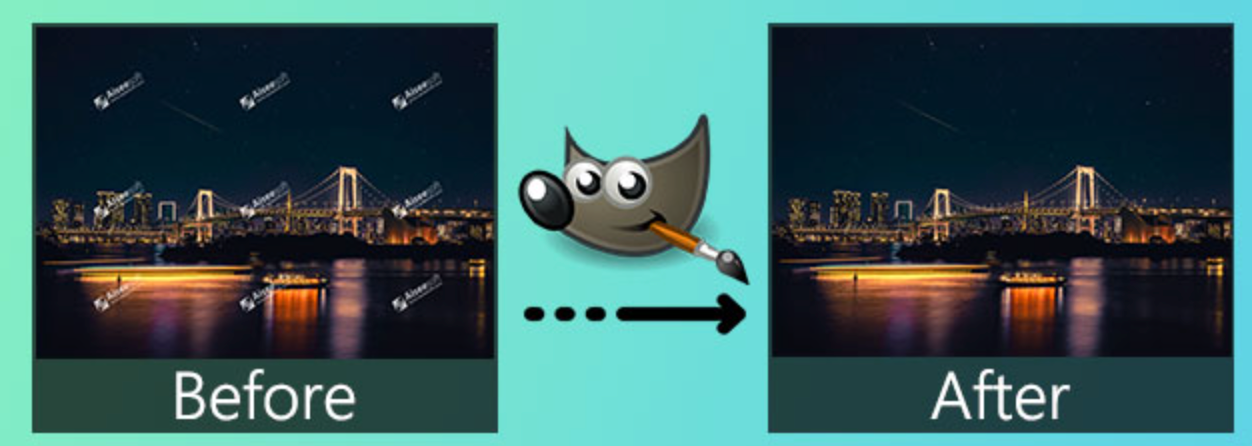
GIMP is a good option for users who want a free desktop solution and don’t mind spending more time on manual editing.
Method 3: Other Image Editing Methods
Depending on the image, there are several other techniques you can consider.
Crop the image: If the watermark is located near an edge and cropping doesn’t remove important content, cropping can be the simplest solution.
Use a healing tool: Healing tools can blend nearby pixels and work well for small unwanted marks on relatively uniform backgrounds.
Use a clone tool: Clone tools copy pixels from one part of an image to another. They’re useful when you need more control over the replacement area.
Try mobile photo editors: Many modern mobile editing apps include object-removal or healing features, making them convenient for quick edits on phones and tablets.
Use a licensed original: If the image comes from a stock platform such as Getty Images, obtaining the properly licensed, watermark-free version is often the most appropriate approach.
3. 결론
Whether you need a quick solution or more precise control, there are several ways to remove unwanted watermarks from images you own or are authorized to edit. AI online watermark removers are convenient for fast and simple edits, while Photoshop and GIMP offer more advanced tools for detailed image cleanup. Other options, such as cropping or mobile editing apps, can also work for simpler cases.