How to Organize Desktop Icons?

A cluttered desktop can quickly become frustrating. When files, folders, applications, screenshots, and shortcuts are scattered across the screen, finding what you need can take longer than it should. A well-organized desktop, on the other hand, gives you a cleaner workspace and makes frequently used items easier to access.
In this guide, we’ll explore practical ways to organize desktop icons and introduce an advanced solution for keeping your desktop tidy.
1. How to Organize Desktop Icons?
1.1 Remove Unnecessary Icons
The easiest way to start organizing your desktop is to remove items you no longer need. Old shortcuts, temporary files, duplicate downloads, and completed projects can quickly create unnecessary clutter.
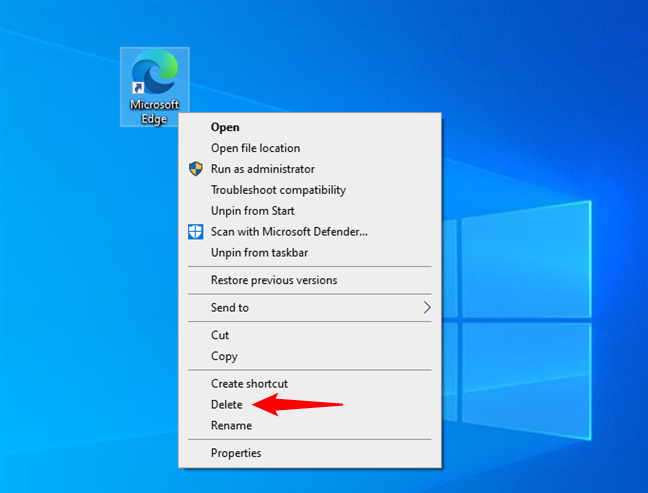
Review your desktop and delete files that are no longer useful. For important files, move them to a suitable folder rather than keeping everything on the desktop.
If you’re unsure whether you need a file, consider moving it into an archive folder instead of deleting it immediately.
2.2 Create Folders for Different Categories
Folders are one of the simplest ways to organize desktop files. Instead of leaving dozens of individual files visible, group related items together.
For example, you could create folders such as:
- Work
- Personal
- Projects
- 이미지
- 동영상
- 서류
- 다운로드
- Archive
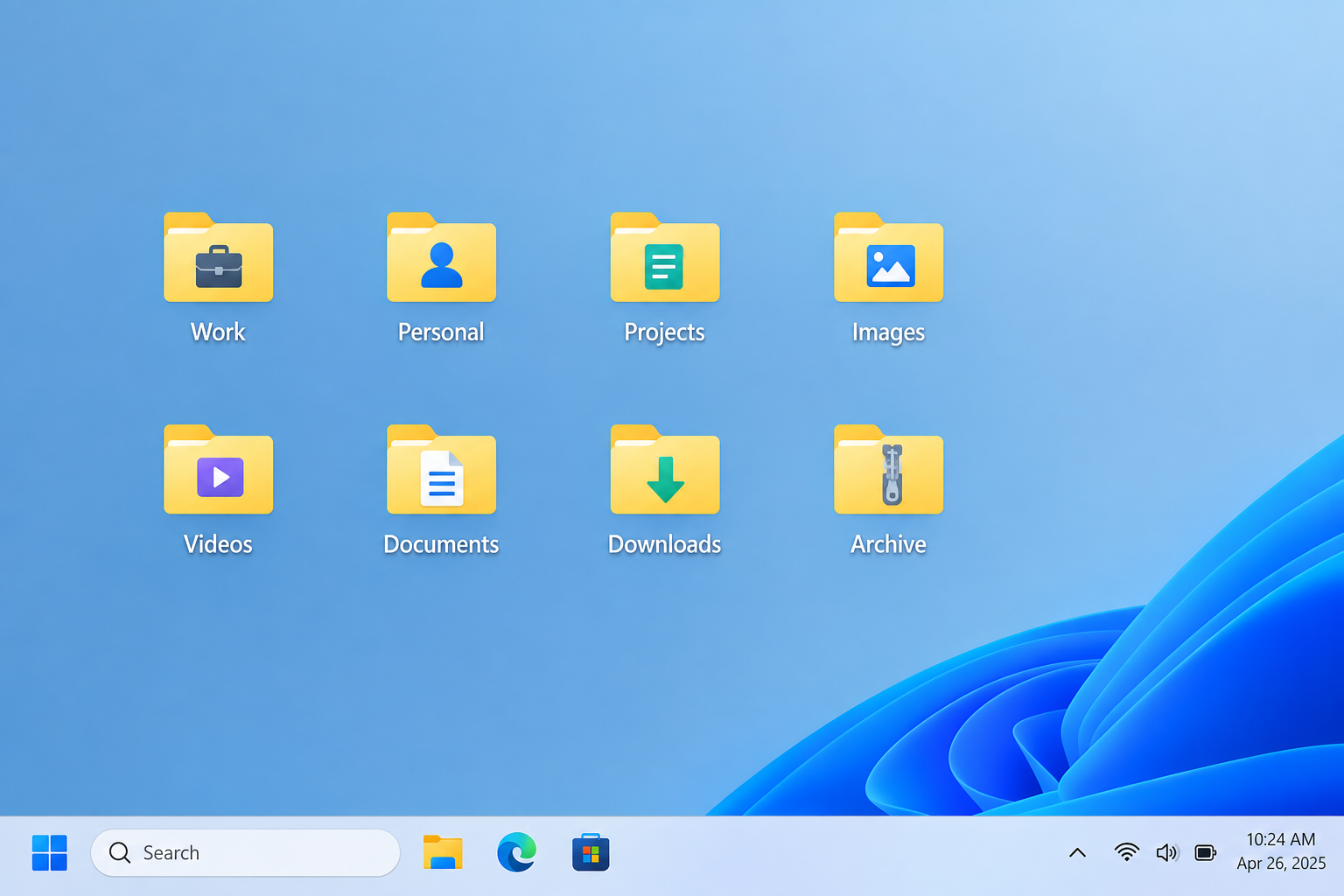
You can also create project-specific folders if you regularly work with multiple projects. This keeps related documents and resources together and makes them easier to locate.
2.3 Organize Icons by Purpose
Another useful approach is to organize icons based on what you use them for. For example, you might create separate groups for work, entertainment, communication, and creative applications.
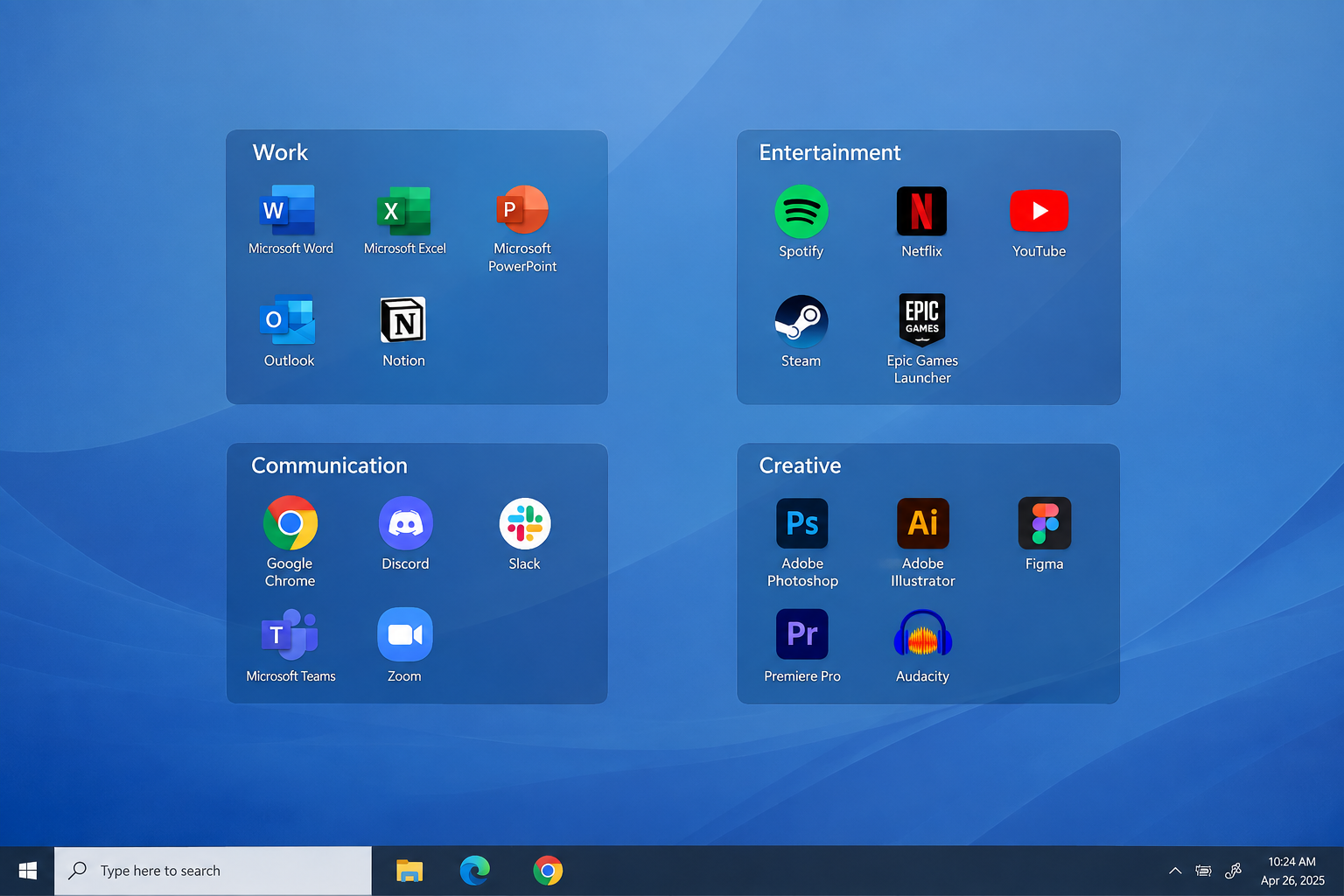
You can keep frequently used applications together and move less frequently used programs into another folder or access them through the Start menu, taskbar, Dock, or Applications folder.
This approach is especially useful if your desktop contains many application shortcuts.
2.4 Sort Icons Automatically
Both Windows and macOS provide built-in options for arranging desktop icons.
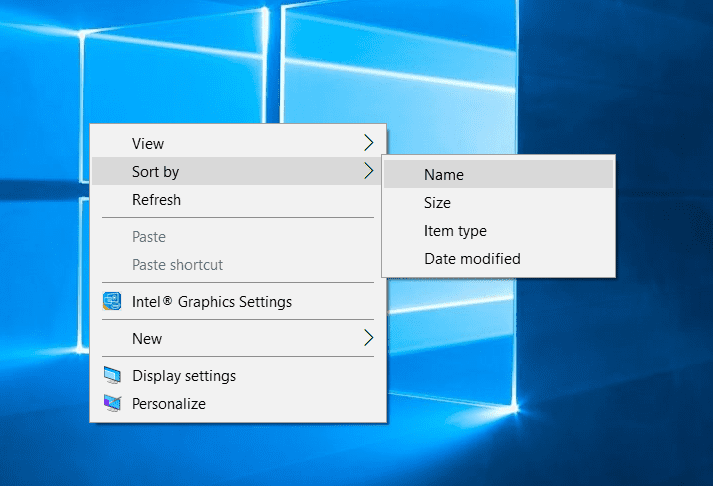
On Windows, right-click an empty area of the desktop and use 보다 또는 Sort by to arrange icons by name, size, item type, or modification date. You can also enable automatic arrangement to keep icons aligned.
On Mac, right-click the desktop and use the available Sort By options to arrange items by name, kind, date, size, and other criteria. Mac users can also use Stacks to group similar desktop files automatically.
Automatic sorting is a good choice if you want a neat desktop without manually positioning every icon.
2.5 Organize Files by Project Status
If you use your computer for work or study, organizing files according to their status can be more practical than sorting them only by file type.
For example, you could create folders called:
- To Do
- In Progress
- Review
- Completed
- Archive
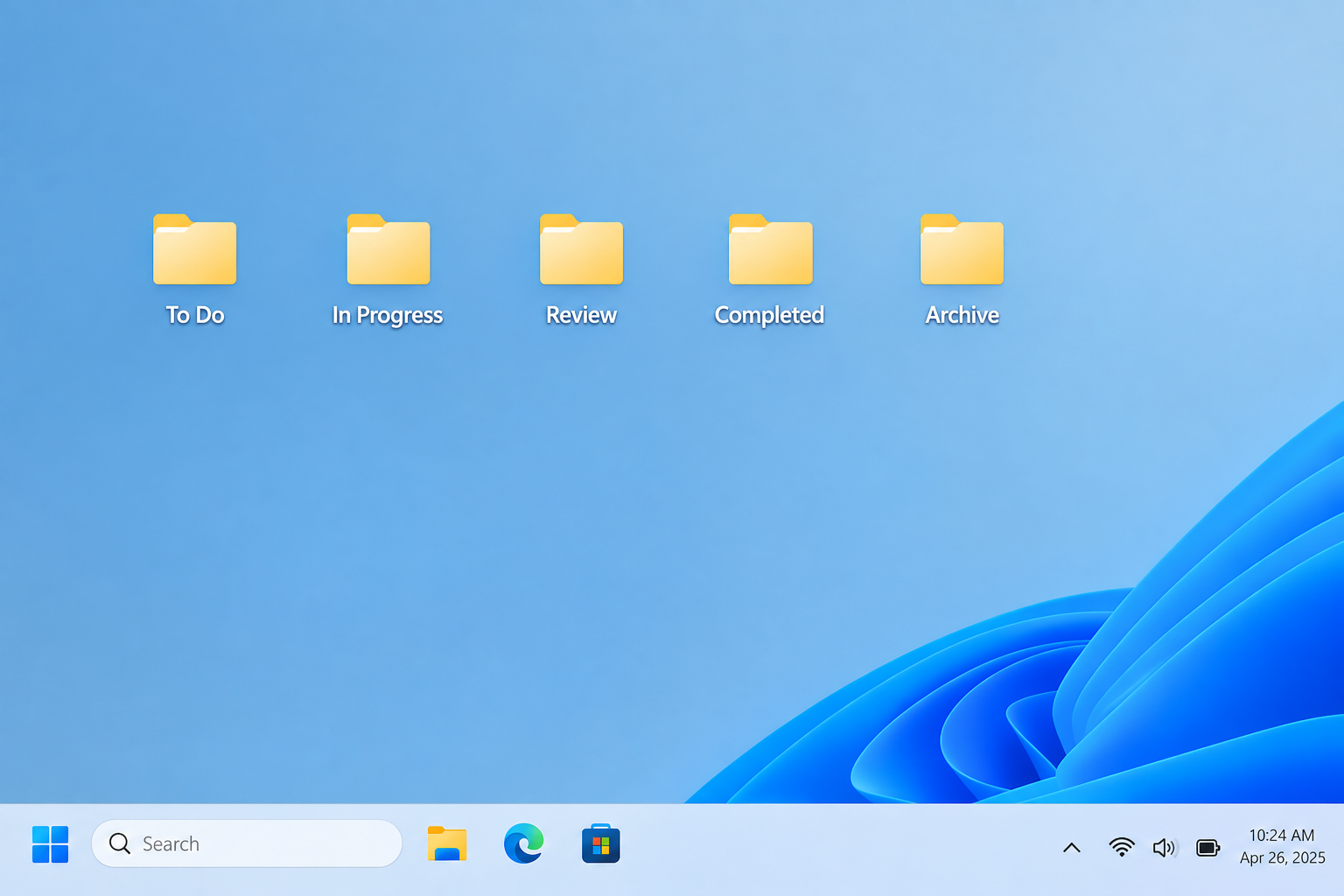
This makes it easier to understand what still needs attention. Once a project is finished, move its files from the active area into an archive folder so your desktop doesn’t become overloaded.
2.6 Keep Frequently Used Items Accessible
Not everything needs to stay on the desktop. If you frequently use an application, consider placing it on the Windows taskbar or Mac Dock instead.
Similarly, frequently accessed folders can be pinned to File Explorer or Finder. This allows you to keep the desktop relatively clean while still having quick access to important items.
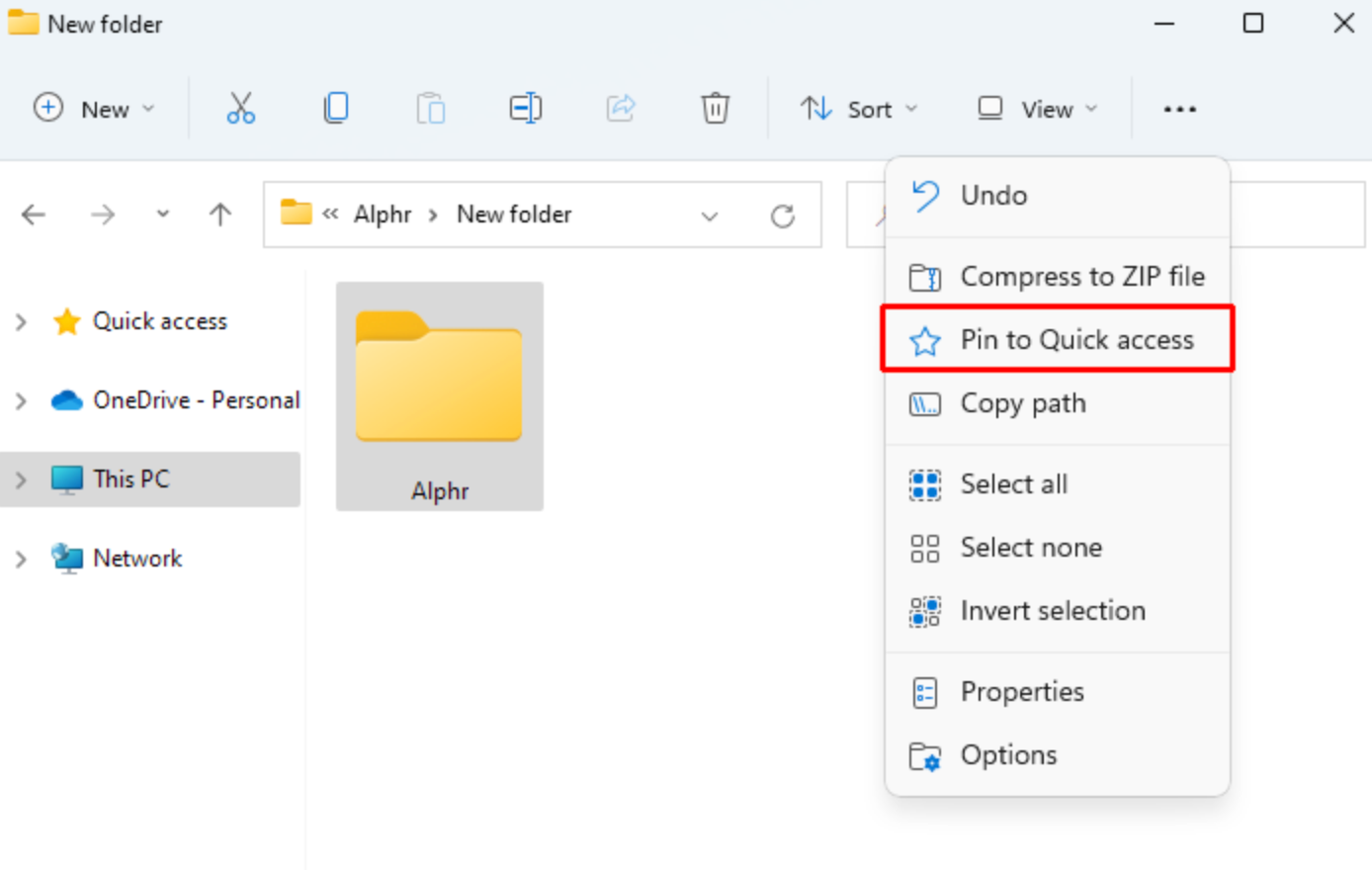
A good desktop usually contains only the things you need to see or access regularly.
2.7 Create a Temporary Folder
If you often download files or save items temporarily, create a folder called To Sort , Temporary , 또는 Inbox .
Instead of allowing temporary files to spread across the desktop, place them in this folder. Then, once a week, review its contents and move files to their permanent locations or delete items you no longer need.
This simple habit can prevent desktop clutter from building up again.
2.8 Use Desktop Zones
You can also organize icons according to their position on the screen. For example, you might keep work-related items on the left, personal files on the right, and frequently used shortcuts at the top.
This creates a visual system that allows you to locate items based on where they are rather than searching through a long list.
However, manually arranged icons can become difficult to maintain as new files are added. If your desktop changes frequently, an automated organizer may be more convenient.
2. Bonus: Advancedly Organize Desktop Icons/Files with DeskTidy
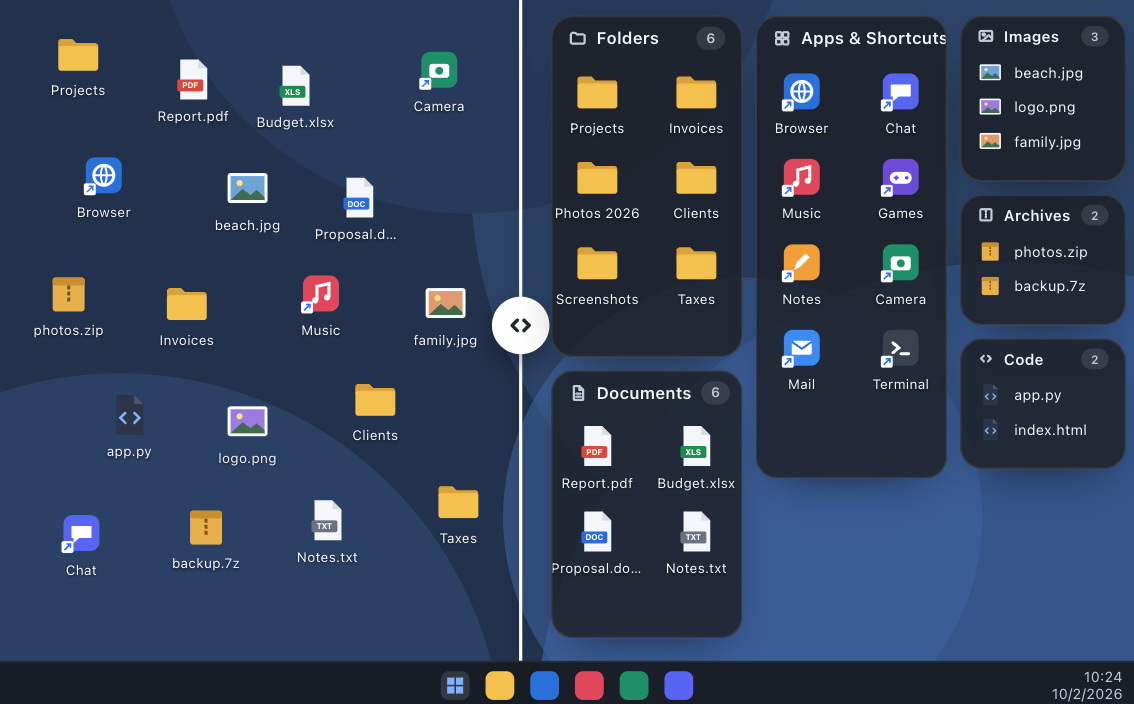
If your desktop is cluttered with files and shortcuts, DeskTidy offers a simple way to keep it organized. This Windows desktop organizer automatically groups existing icons into panels by category, such as apps, documents, images, archives, and folders, without requiring you to create groups manually.
Key Features of DeskTidy:
- Sort desktop items into dedicated panels by type.
- Click a panel and start typing to quickly find desktop icons.
- Move and resize panels and reorder icons according to your preferences.
- Keep a simple task list directly on the desktop.
How to Organize Your Desktop with DeskTidy:
- Download DeskTidy from the official website and install it on your Windows 10 or 11 computer.
- Launch DeskTidy to automatically group desktop icons into organized panels.
- Browse or search for files within the appropriate panel.
- Customize the layout by moving, resizing, or rearranging panels and icons.
- Keep your desktop organized as new files are automatically added to the relevant panels.
3. 결론
Organizing desktop icons doesn’t have to be complicated. You can start with simple methods such as deleting unnecessary files, creating folders, sorting icons automatically, organizing items by project, and keeping only frequently used shortcuts on the desktop.
However, if you regularly deal with a large number of desktop files and want to reduce manual organization, DeskTidy is worth trying. It automatically groups desktop icons into panels, provides quick search and customizable layouts, and leaves your actual files untouched. In short, DeskTidy is a convenient solution worth trying for keeping a busy desktop organized.