How to Remove Duplicate Photos from iPhone?

Having too many photos on your iPhone can make it difficult to find the pictures you actually want. Duplicate photos are one of the most common causes of a cluttered photo library. You may have saved the same image several times, imported photos from different devices, or taken multiple similar shots without realizing how much space they occupy.
Fortunately, removing duplicate photos from an iPhone doesn’t have to be difficult. In this guide, we’ll introduce three practical ways to remove duplicate photos from iPhone and explain when each method is most useful.
1. Why Need to Remove Duplicate Photos from iPhone?
Duplicate photos may seem harmless, but removing unnecessary copies can make your photo library much easier to manage.
- Free up storage: Duplicate images take up valuable iPhone storage that could be used for apps, videos, and new photos.
- Organize your library: Removing repeated images makes it easier to browse and find important photos.
- Reduce clutter: A cleaner library means less time scrolling through multiple copies of the same picture.
- Make backups easier: A smaller photo collection can make transferring and backing up your photos more manageable.
- Keep the best version: Removing duplicates lets you keep the highest-quality or most useful version of a photo.
2. How to Remove Duplicate Photos from iPhone?
Depending on the size of your photo library, you can choose from several methods to find and delete duplicate photos.
Method 1: Manually Compare Photos by Date
The simplest way to remove duplicate photos is to look through your iPhone’s photo library manually. This method doesn’t require additional software, making it a good choice if you only have a small number of duplicates.
The Photos app lets you browse your images by different time periods, making it easier to identify photos that were taken or saved around the same time.
단계:
- 열기 Photos app on your iPhone, then browse your library and use the available date-based views, such as Years, Months, or Days , to narrow down your search.
- Look for identical photos or multiple copies of the same image, then tap 선택하다 and choose the duplicate photos you don’t want to keep.
- Tap the Trash icon and confirm that you want to delete the selected photos.
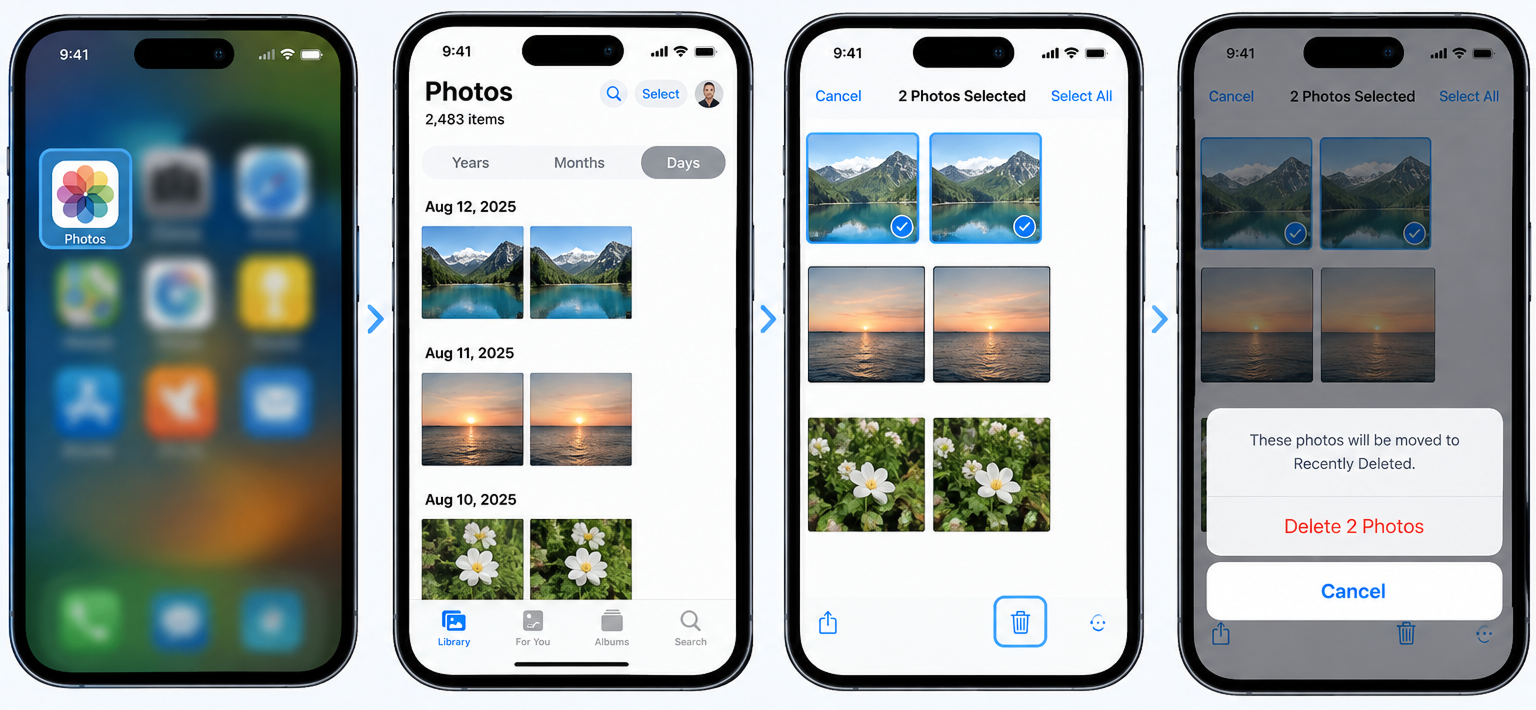
This method is straightforward, but it can become time-consuming if you have hundreds or thousands of photos. It can also be difficult to identify similar photos that aren’t exactly identical. For example, you might have five pictures from the same moment with only minor differences between them.
Method 2: Use the Photos App to Find Duplicates
If your iPhone supports the Duplicates feature, you can use the built-in Photos app to automatically identify duplicate photos and videos.
This is one of the easiest ways to clean up your library because you don’t need to install another application.
단계:
- 열기 Photos app, then go to Collections and find the 유용 section.
- Tap Duplicates to view photos and videos that your iPhone has identified as duplicates.
- Review the duplicate groups and tap 병합 next to the ones you want to clean up.
- If you want to process multiple groups, tap 선택하다 , choose the duplicate groups, and then merge them.
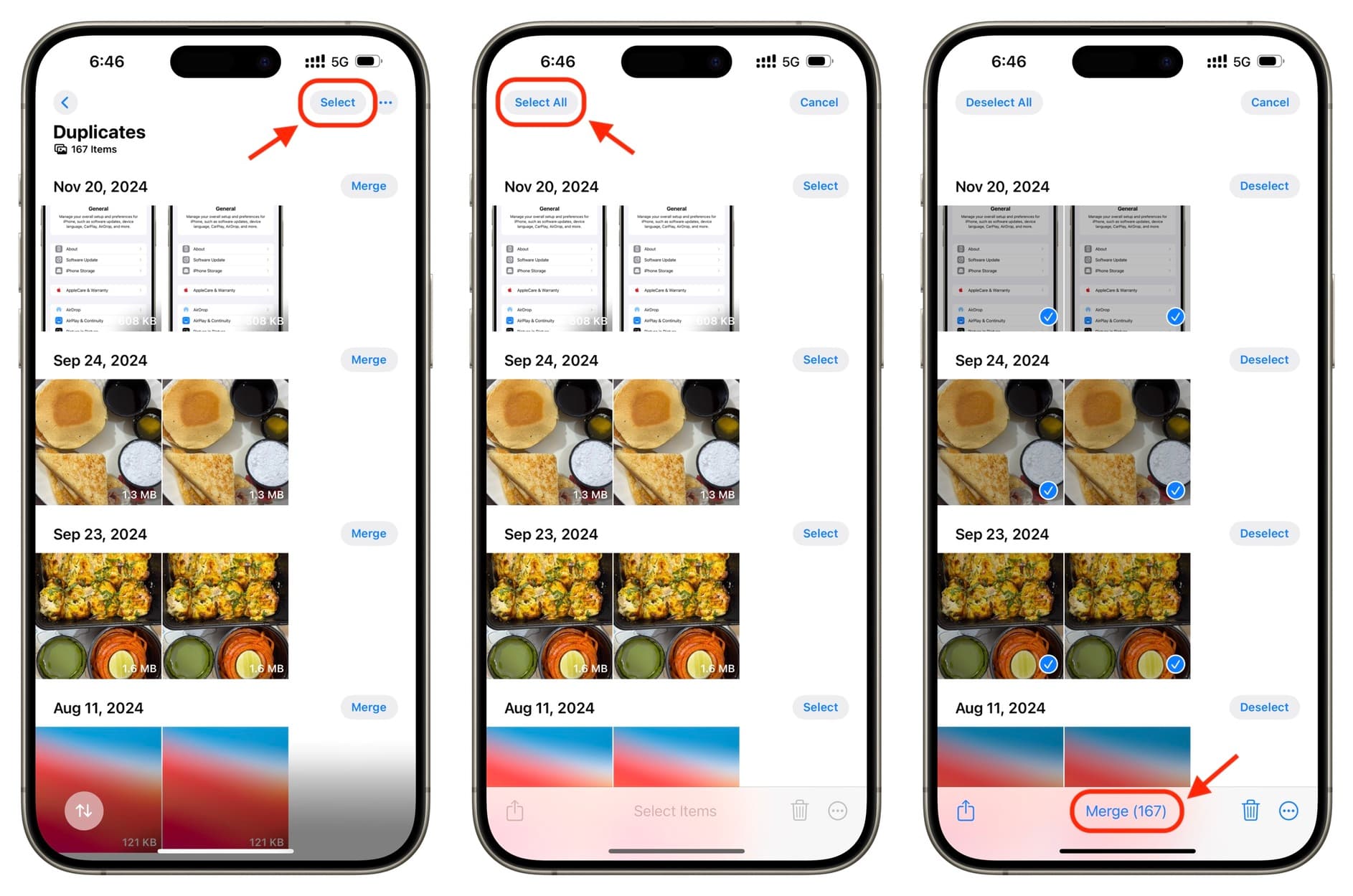
When you merge duplicates, iPhone keeps one version while removing the unnecessary copies. This makes the process much faster than manually comparing every image.
However, the Duplicates feature isn’t designed to find every type of similar photo. For example, photos that look almost identical but have slightly different content may not be identified as duplicates. This can be an issue if your goal is to clean up not only exact copies but also repeated or similar shots.
Method 3: Use Desktop Photo Management Software
For users with a large photo collection, managing photos on a computer can be more convenient. A larger screen makes it easier to compare images side by side, while dedicated photo management software can provide additional tools for finding and organizing duplicates.
One option to consider is PicMan , a desktop photo management tool from Swyshare . It can help organize photos, find duplicate and similar images, and manage photos imported from an iPhone.
Key Features of PicMan:
- Identify duplicate and similar images, including photos that aren’t exact copies.
- View photos grouped according to the day they were taken.
- Connect an iPhone and manage or import photos from the device.
- Select and handle multiple photos at once.
- Rename, move, rotate, or delete selected photos from your computer.
- Keep deleted photos in the Trash so you have an opportunity to restore them if necessary.
How to Remove Duplicate iPhone Photos with PicMan :
- Download PicMan and install it on your Windows computer.
- Choose a folder from the left side of the PicMan interface. The software can display your photos grouped by the day they were taken, making it easier to review your collection.
- Use the find “ Similar photos ” feature to scan your collection, then select the duplicate or unnecessary images and delete them.
- PicMan will move deleted photos to its Trash, giving you an opportunity to recover them if you change your mind.
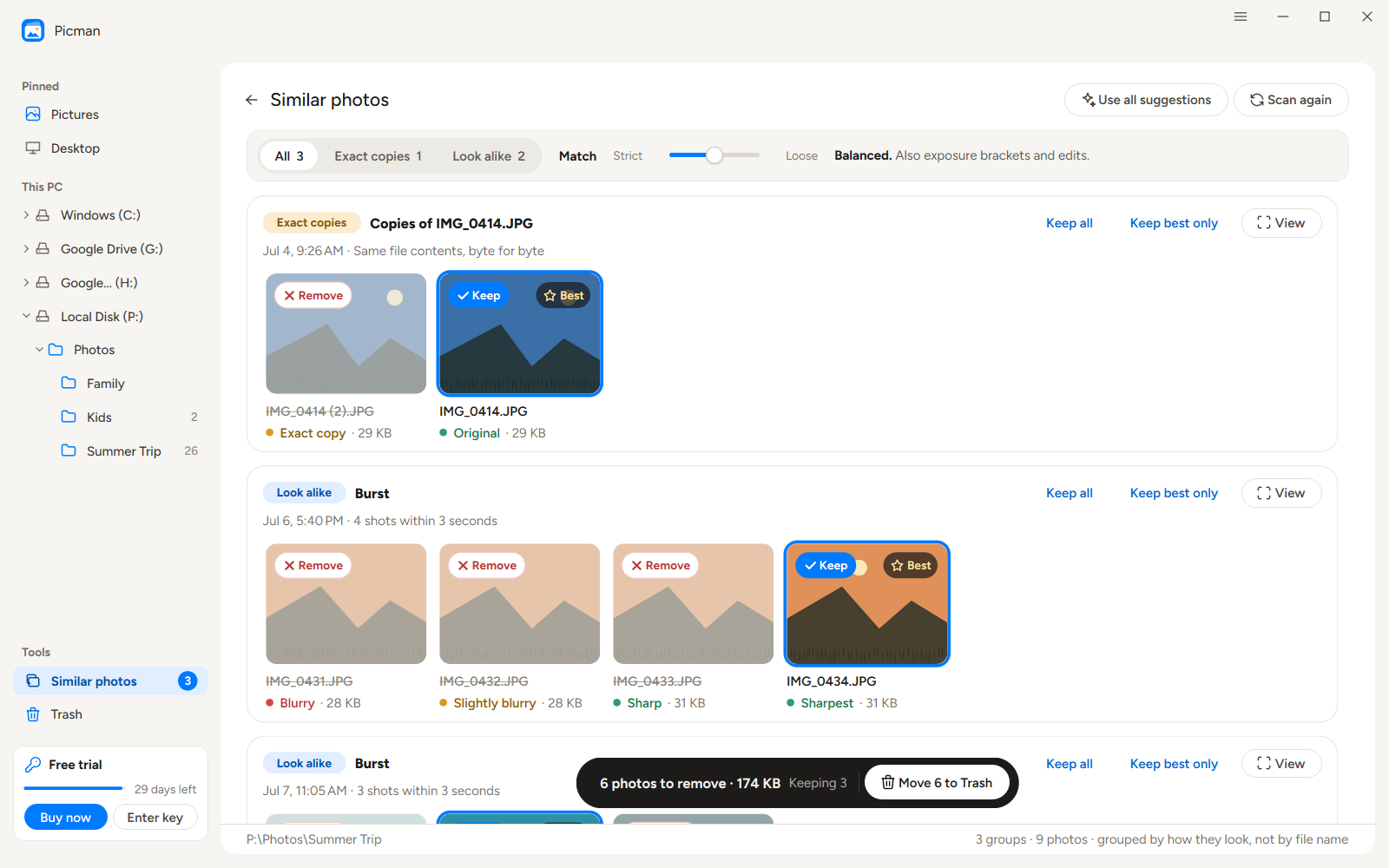
3. 결론
Duplicate photos can quickly take over an iPhone photo library, using storage space and making it harder to find the pictures you want. Fortunately, there are several ways to clean them up.
For a small collection, manually comparing photos by date is a simple option. If you want a quick built-in solution, the Photos app’s Duplicates feature can automatically identify many duplicate photos and videos.
However, if you have a large collection or want to find both duplicate and similar photos, a desktop photo management tool can provide a more convenient solution. PicMan offers tools for organizing photos by date, finding similar images, managing iPhone photos, and safely deleting unwanted pictures.
If you’re looking for a more comprehensive way to clean up and organize your iPhone photo library, PicMan is worth trying.