
MP4 is one of the most commonly used video formats today, widely used for movies, tutorials, social media clips, gameplay recordings, and marketing videos. However, there are many situations where users need to extract individual frames from an MP4 video and save them as PNG images. Whether you want to capture high-quality screenshots, create thumbnails, preserve important moments, or build image sequences for editing projects, converting MP4 to PNG is a practical solution.
In this article, we’ll explore the best free online MP4 to PNG converters, explain how to use them, discuss their pros and cons, and introduce a more powerful alternative for users who need advanced features and better performance.
1. Best Online Tools to Convert MP4 to PNG in 2026
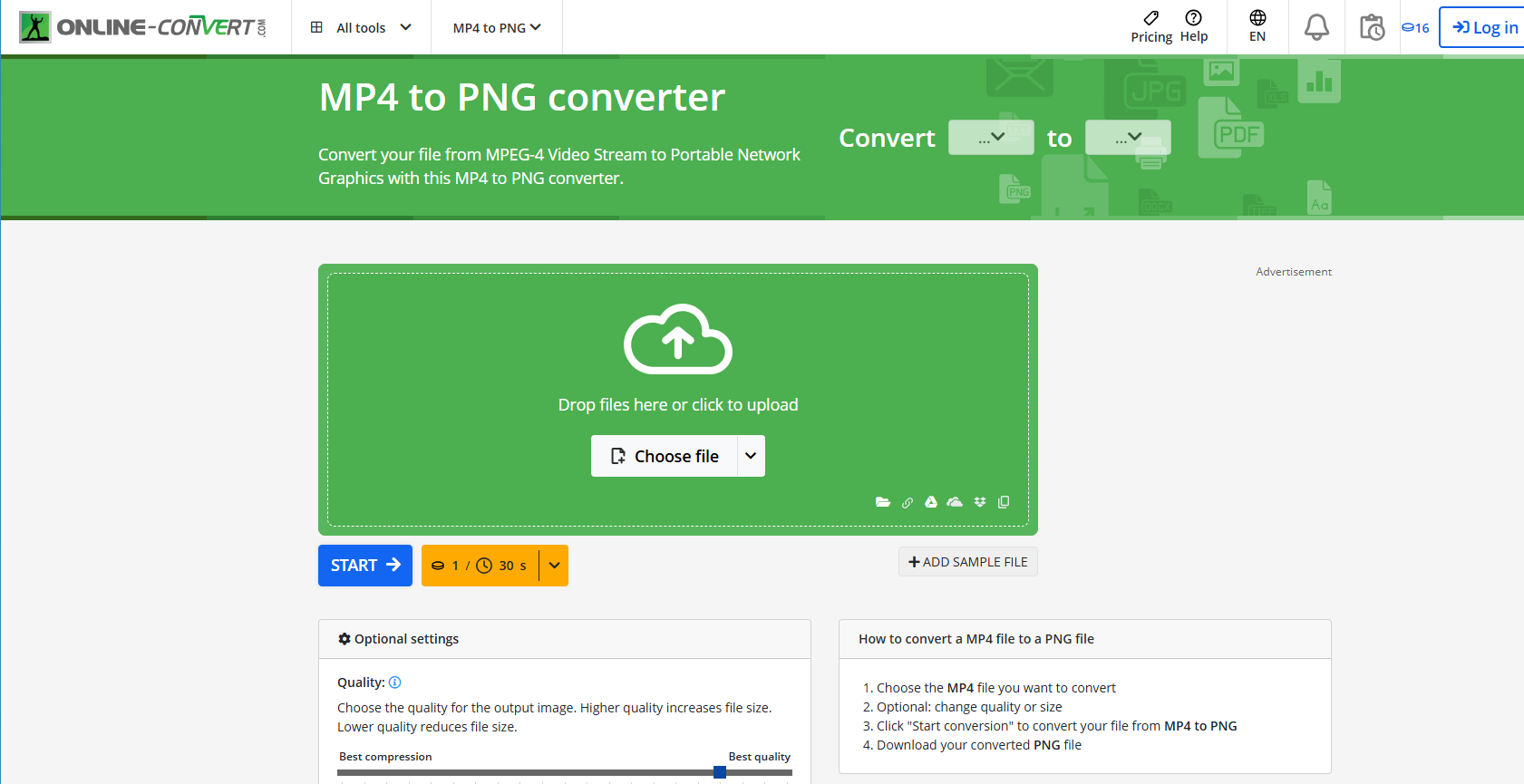
1.1 Online-Convert
Online-Convert is a well-known online file conversion platform that supports video-to-image extraction.
특징:
- Convert MP4 videos into PNG images
- Upload files from local devices or cloud storage
- Optional customization settings
- 소프트웨어 설치가 필요하지 않습니다.
1.2 MConverter
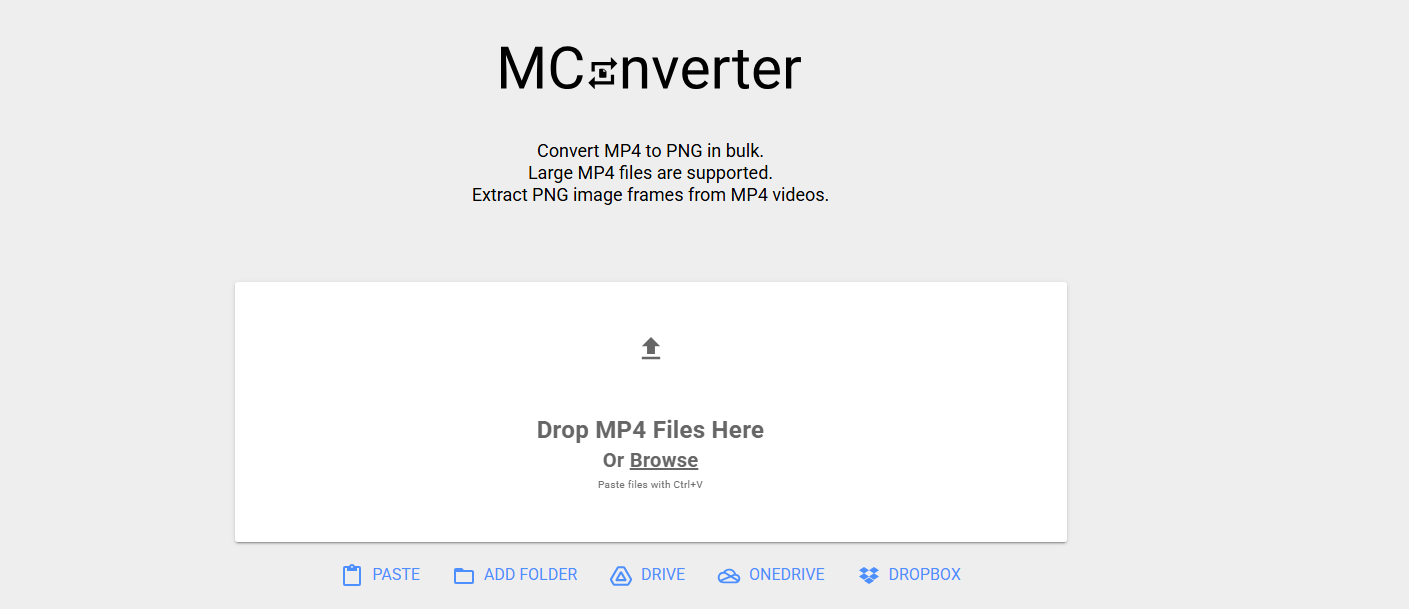
MConverter is a modern online converter that supports multiple file formats and batch processing.
특징:
- Drag-and-drop uploads
- Batch conversion support
- Fast online processing
- Compatible with desktop and mobile browsers
1.3 Ezgif Video to PNG Converter
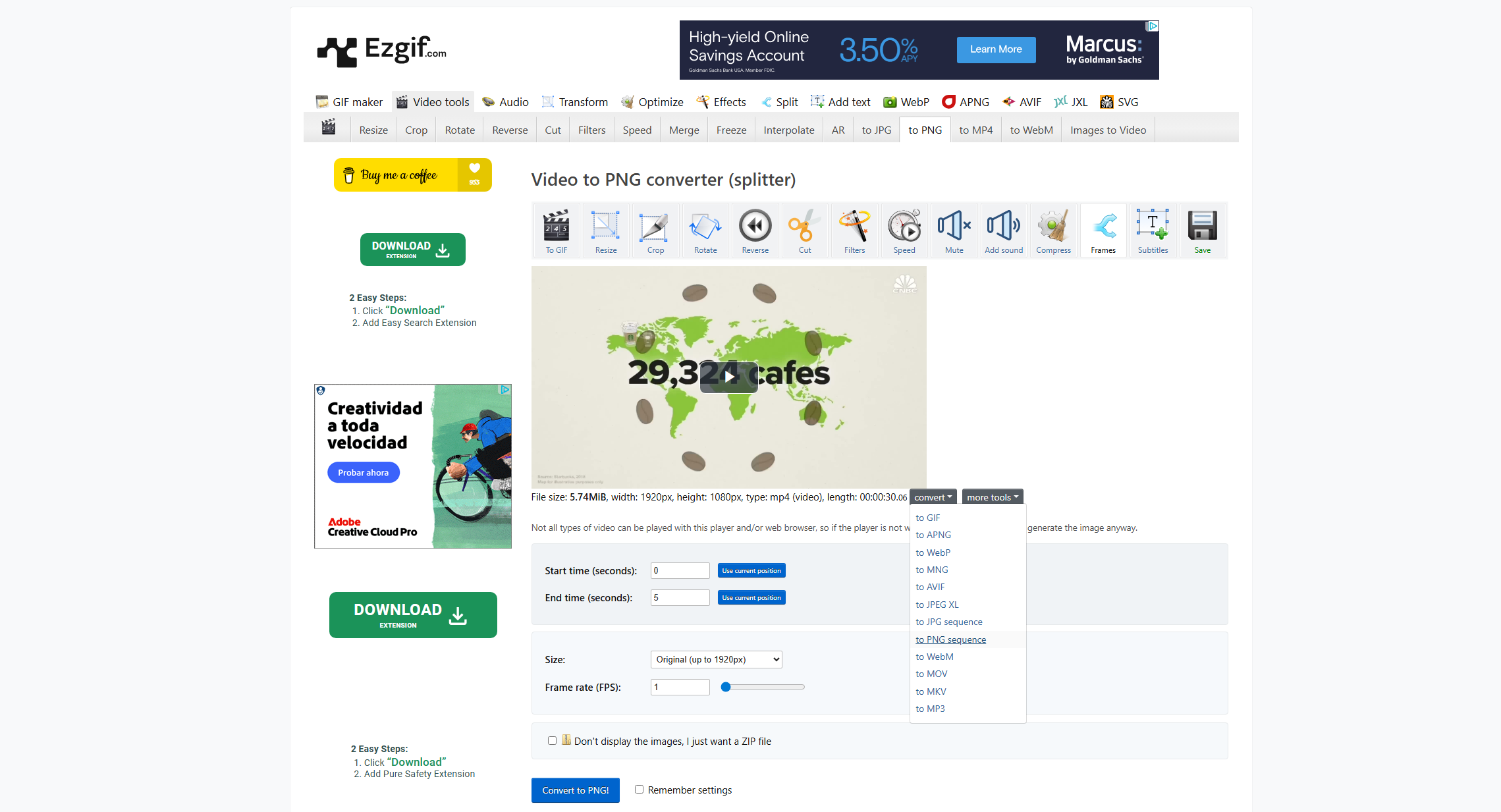
Ezgif Video to PNG Converter is one of the most popular online frame extraction tools.
특징:
- Extract PNG frames from MP4 videos
- 프레임별 미리보기
- Trim video clips before conversion
- Supports multiple video formats
1.4 Mov.to
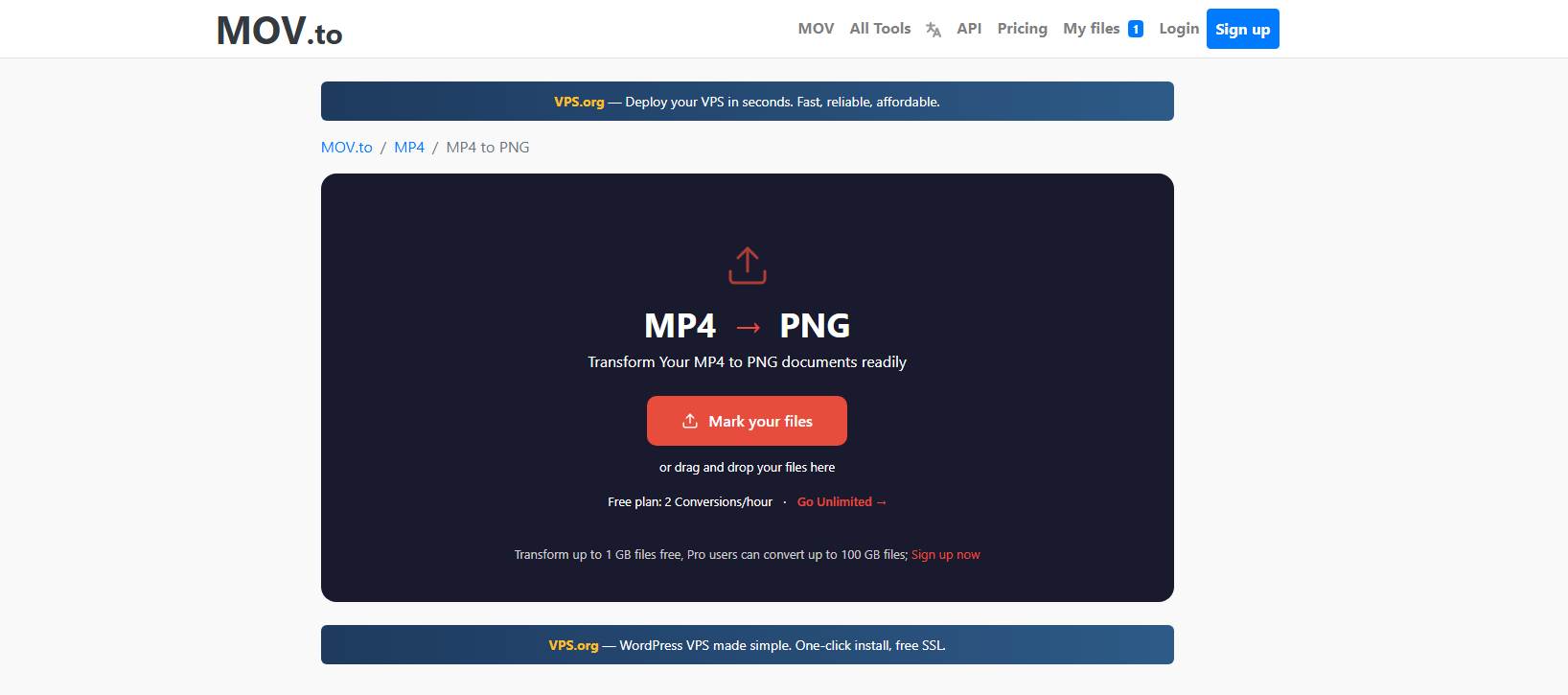
Mov.to provides simple online media conversion services, including MP4 to PNG conversion.
특징:
- 사용하기 쉬운 인터페이스
- Fast cloud processing
- Works on multiple devices
- Supports high-quality PNG export
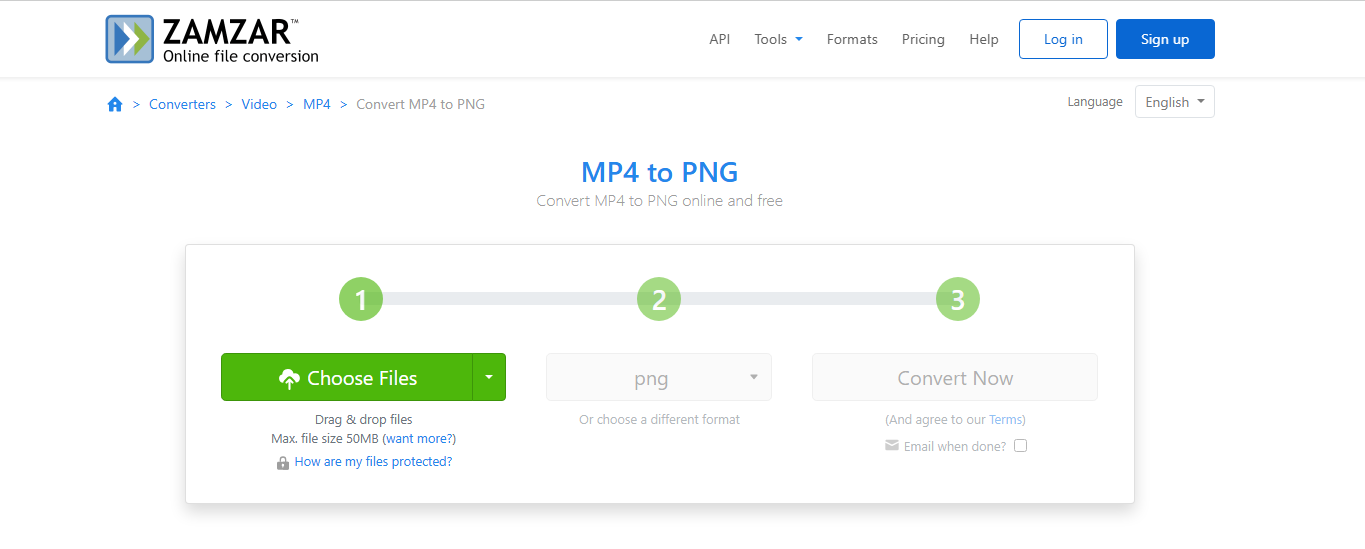
1.5 Zamzar MP4 to PNG Converter
Zamzar is a long-standing online file conversion platform known for broad format compatibility.
특징:
- Supports over 1,000 file formats
- Browser-based conversion
- Email notifications for completed tasks
- 플랫폼 간 호환성
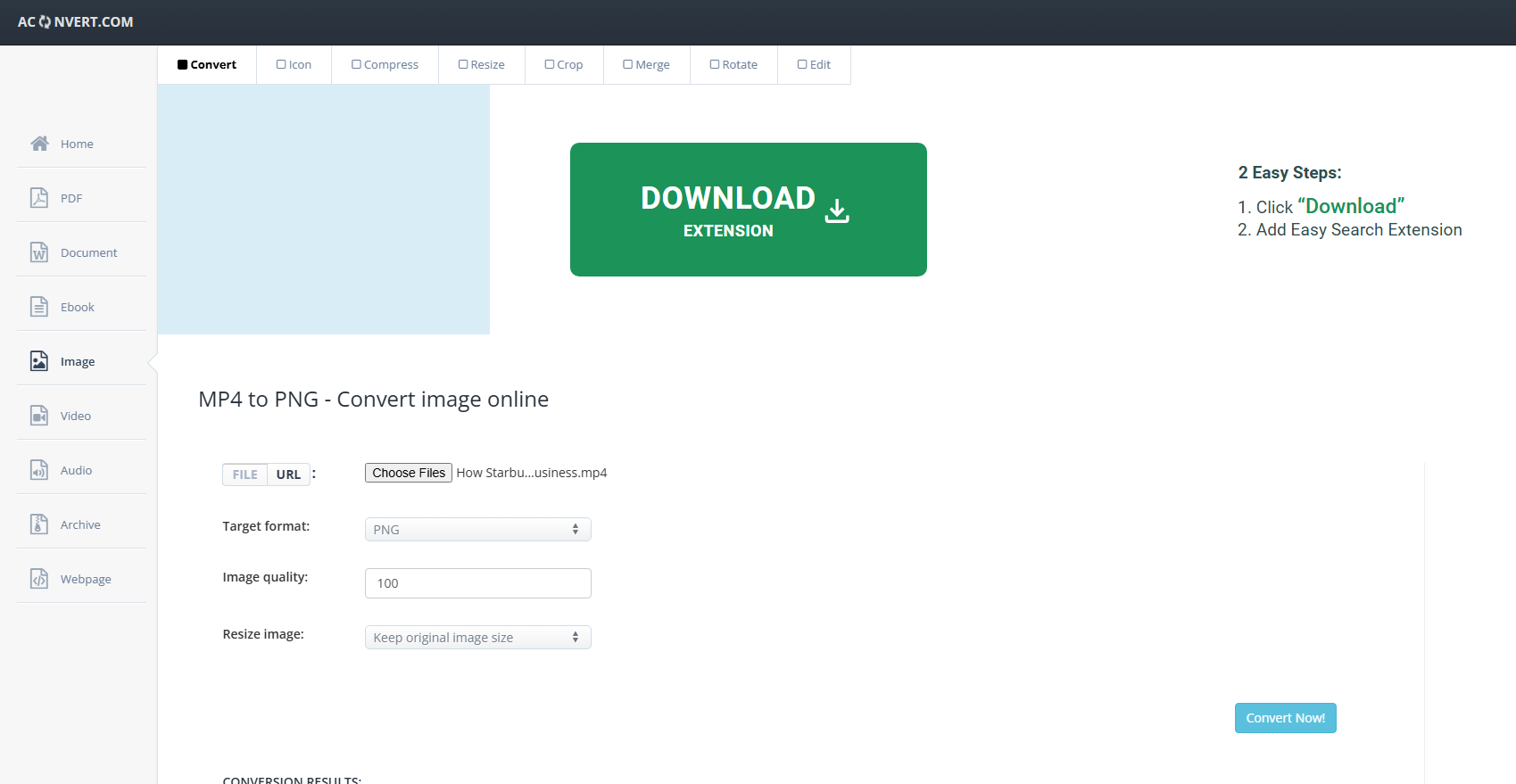
1.6 Aconvert
Aconvert is a lightweight online conversion tool that also supports extracting frames from videos.
특징:
- Video frame extraction
- Adjustable frame interval settings
- Supports cloud imports
- Free to use without registration
2. How to Convert MP4 to PNG Using Online Tools?
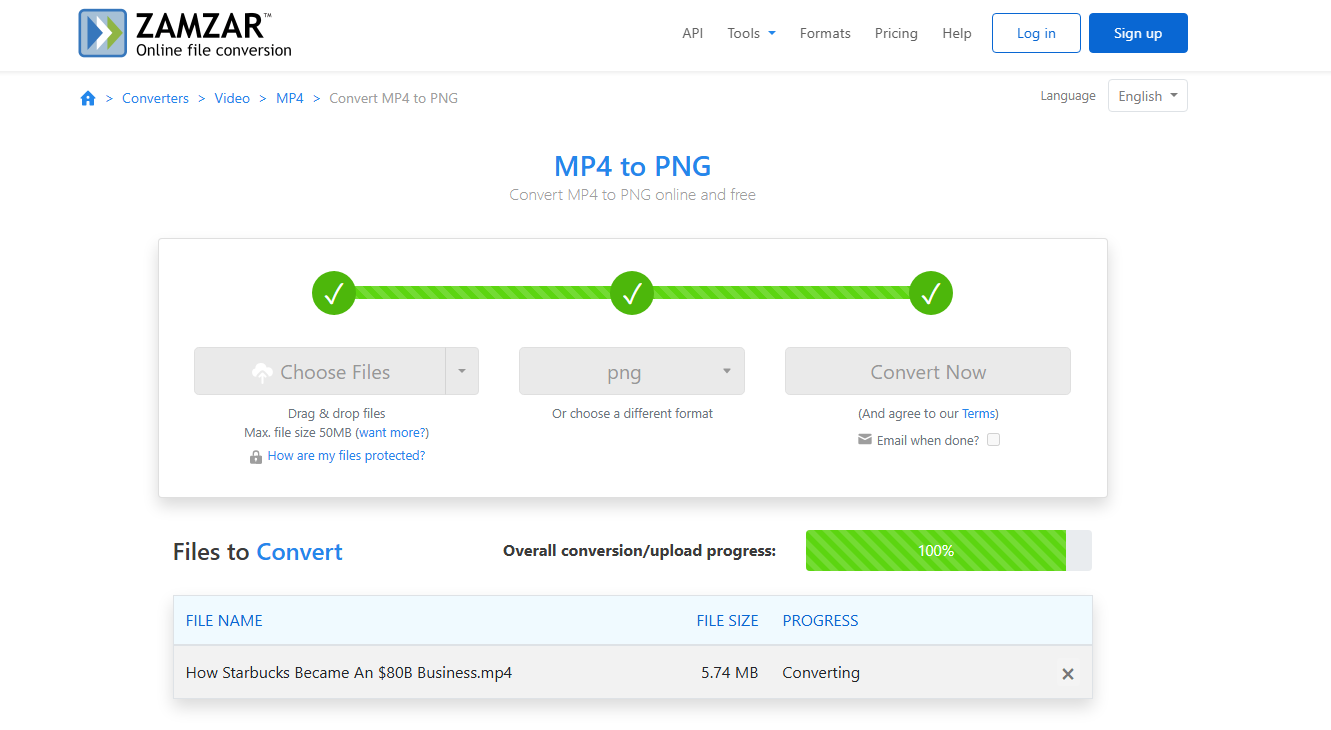
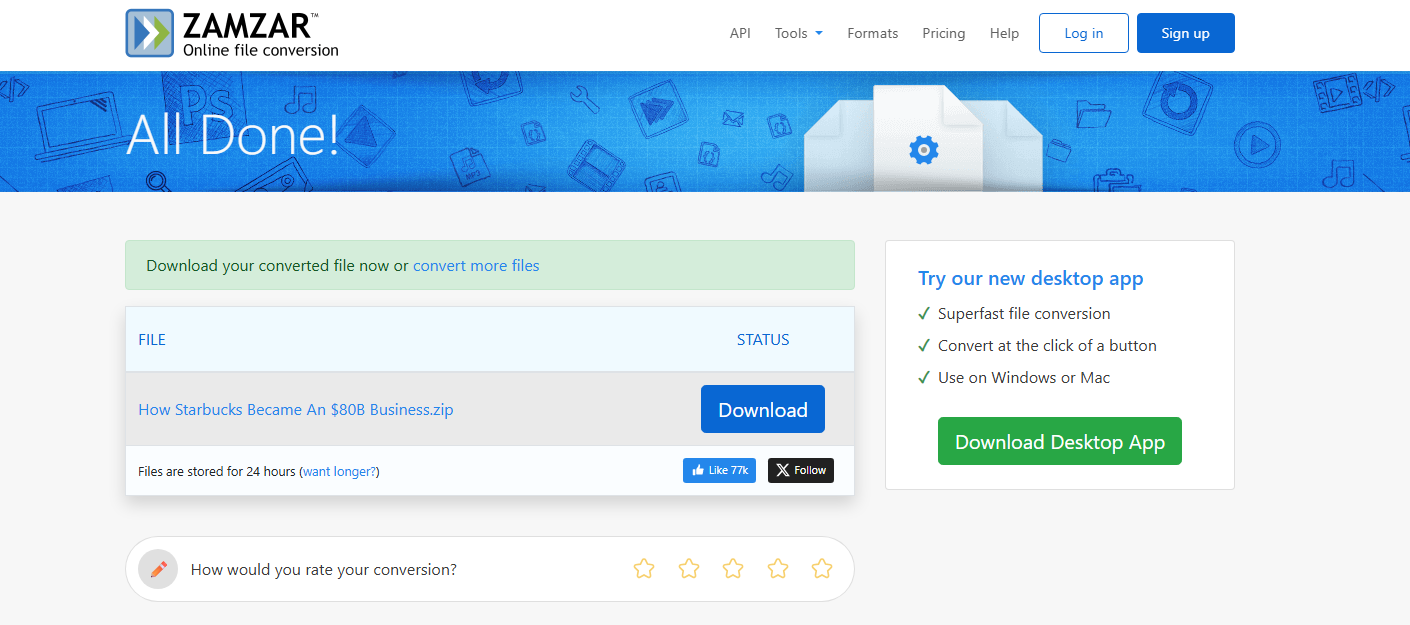
Although each online converter has a slightly different interface, the general process is very similar. Here’s a step-by-step guide for converting MP4 videos into PNG images online.
- Choose one of the tools mentioned above, such as: Online-Convert, Ezgif or Zamzar.
- Click the upload button and select the MP4 video from your computer, confirm the PNG output format and start conversion.
- Once the conversion is complete, download the extracted PNG files to your device.
3. Pros and Cons of Online MP4 to PNG Converters
Online converters are convenient, but they are not perfect for every situation. Here are the main advantages and disadvantages.
장점 :
- No Installation Needed
Everything works directly in a browser, saving storage space and setup time.
- 사용하기 쉬움
Most online tools are beginner-friendly and require little technical knowledge.
- 플랫폼 간 호환성
Users can access them on Windows, Mac, Linux, tablets, and smartphones.
- Free Access
Many tools offer free conversion for occasional use.
- Convenient for Small Projects
Short clips and quick screenshots can be processed rapidly.
단점
- File Size Restrictions
Free versions often limit upload size and video duration.
- Slower Upload Speeds
Large MP4 files can take a long time to upload and process.
- 개인정보 보호 문제
Videos are uploaded to third-party servers, which may not be suitable for private content.
- Limited Batch Processing
Most online tools are not designed for large-scale frame extraction.
- 인터넷 의존성
A stable internet connection is required throughout the conversion process.
4. Try a More Powerful MP4 to PNG Converter – Swyshare Sparkit
While online tools are useful for quick conversions, users who frequently extract frames from videos may need a faster and more powerful solution. This is where Swyshare Sparkit becomes an excellent choice.
Sparkit is a desktop-based video screenshot and frame extraction tool designed for high-quality image capture and advanced media workflows.
왜 Sparkit stands out :
- Extract all frames automatically from MP4 videos
- Capture high-quality PNG, JPG, or WEBP images
- Generate or manually add captions to videos
- Merge captured frames into a full image gallery or storyboard
- Work on both Windows and Mac.
How to convert MP4 to PNG sequence with Sparkit :
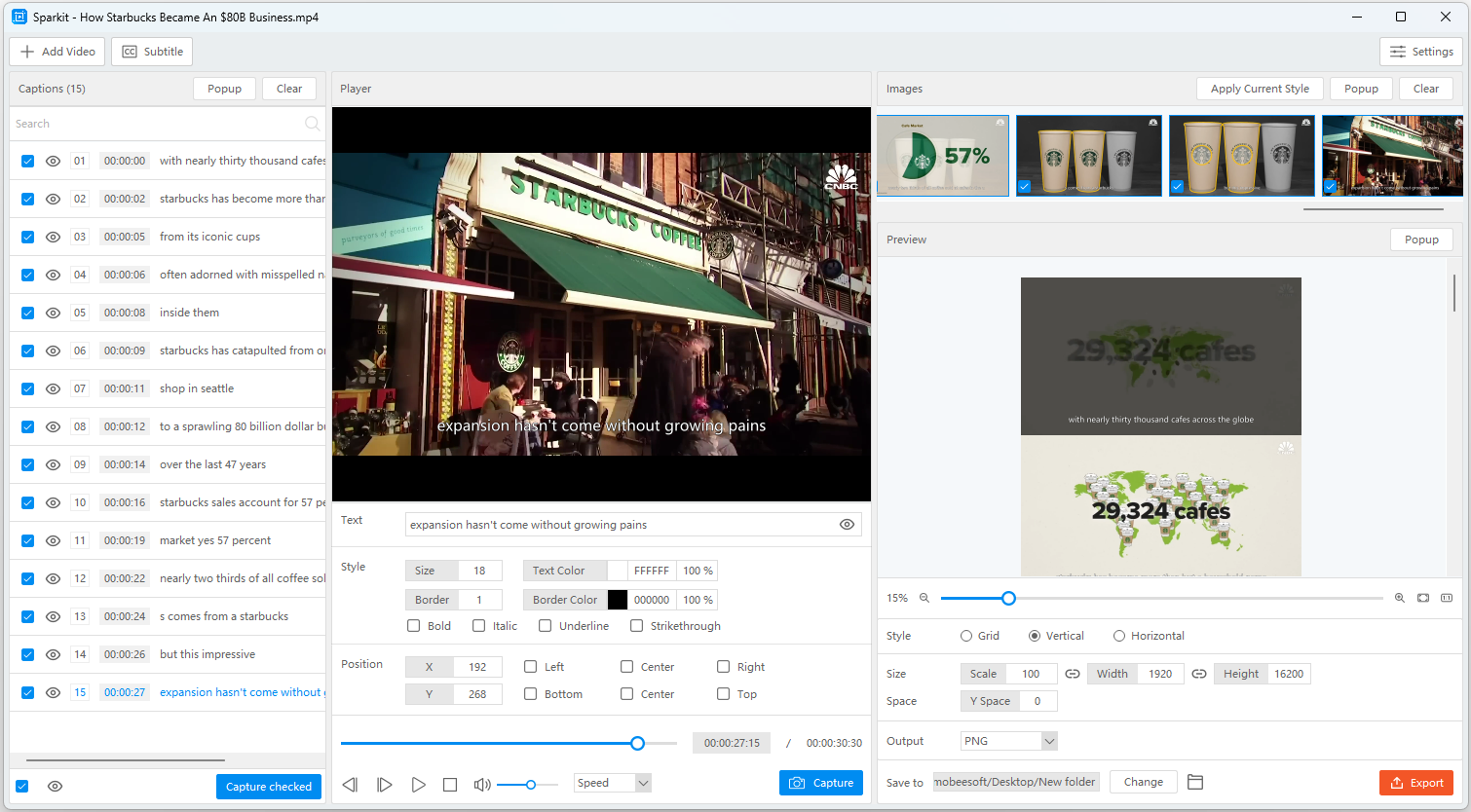
- 다운로드 및 설치 Sparkit on your computer, then launch the software and import your MP4 video file.
- Click the Subtitle button to add caption to the video, then click “Capture checked” to extract all frames.
- Select desired images or merge them into a gallery.
- Choose PNG as the export format, the click “Export” and Sparkit will start converting the MP4 into a PNG image sequence.
5. 결론
Online MP4 to PNG converters provide a quick and convenient way to extract images from videos without installing software. Tools like Online-Convert, MConverter, Ezgif, Mov.to, Zamzar, and Aconvert are excellent for casual users who need simple browser-based conversion.
However, online converters also come with limitations such as upload restrictions, slower processing, internet dependency, and limited batch features. For users who regularly work with videos and need better performance, a dedicated desktop tool is often the better choice.
That’s why Swyshare Sparkit is highly recommended. With faster performance, high-quality PNG output, and advanced frame extraction features, Sparkit offers a much more powerful and efficient solution for converting MP4 videos into PNG images in 2026.